Implement Google Wallet Pass Integration With POS
This page provides the information required to integrate Google Wallet Passes with your POS system.
See Smart Passes: Overview and Google Passes on the Punchh Support Portal.
To use a loyalty pass issued by Punchh, certain integration adjustments may be required, depending on the specific flow and offerings a business chooses to adopt. Currently, Punchh recommends two distinct flows or implementation types:
1. One-Tap Flow (requires changes and support on POS and payment terminal) - Small to moderate effort for POS vendors, currently only supported by loyalty passes
2. Alternative to One-Tap Flow - Requires zero to minimal change effort for POS vendors, currently supported by both loyalty and offer passes
One-Tap Flow - Requires Changes and Support on POS and Payment Terminal
A recommended workflow by Punchh, designed for POS systems and Google Wallet's Smart Tap certified payment terminals, enables businesses to adopt the One-Tap loyalty process for customers with NFC-enabled passes. In this streamlined approach, loyalty members tap their mobile devices on the payment terminal. This action allows the terminal to simultaneously capture the user's loyalty pass details and payment information.
The POS system collects Google NFC data (nfc_token) sent by the payment terminal and uses this information to query the Punchh User Look-up API to identify the user. Subsequently, the User Look-up API provides the loyalty user's email address or phone number. The values returned in the API response are then used by the POS system to interact with the Punchh server for various operations such as check-ins, redemptions, and more. Meanwhile, the payment information gathered by the payment terminal is processed to complete the transaction.
Once the payment has been processed, check-in should be performed using the email address or phone number fetched from the previous Punchh User Look-up API call.
This implementation supports flows like:
- Redemptions, using Redemption 1.0 APIs and Redemption 2.0 APIs, and Check-in (transaction with offer redemption)
- Multiple redemptions using Redemption 1.0 APIs and Redemption 2.0 APIs (provided if the POS supports the same with Punchh)
- Check-in without redemption
- Guest enrollment (initiate only if a user who does not have a Google Wallet Pass opted to pay via Google Pay). Refer to the User Enrollment section below for details.
Prerequisites for the Integration
- Google Wallet API Issuer Account: Sign up for an Issuer account on the Google Pay & Wallet Console.
- Smart Tap Capable Terminals: Ensure the physical point-of-sale (POS) terminals at the merchant location are Google Wallet Smart Tap capable.
- Pass Class and Object: Use the Google Wallet API to create a "pass class" (e.g., for loyalty cards, gift cards, or offers) and individual "pass objects" for users, enabling them for Smart Tap redemption in their properties. See the Configuring Google Wallet section in the Google Passes article on the Punchh Support Portal.
- Collector ID: Integration between the terminal and POS system to get NFC data, etc., per Google Wallet VAS specification. Obtain a unique Collector ID from your terminal provider and configure it on the terminals.
If all prerequisites are fulfilled and the POS system has received the user's pass NFC data via the payment terminal, then the POS will require minimal to moderate effort to retrieve the user's details from Punchh.
The POS needs to implement the Punchh User Look-up API to look up the user using NFC token data. The curl request looks like this:
curl --request GET \
  --url 'https://server_name_goes_here.punchh.com/api/pos/users/search?nfc_token=NFC_DATA_RECEIVED_FROM_TERMINAL' \
  --header 'Accept: application/json' \
  --header 'Accept-Language: ' \
  --header 'Authorization: Token token=LOCATION_KEY_GOES_HERE, btoken=BUSINESS_KEY_GOES_HERE'
Where:
- nfc_token is the NFC data of the pass received by the POS system from the payment terminal when the user taps the device containing the pass onto the terminal that can read the NFC-enabled pass
- token is the location key of the store where the transaction is happening. Punchh will use this information.
- btoken is the business key (UUID) configured for a business in Punchh
In response to the above API call, the POS system receives the user object from Punchh, which contains the user’s email address / phone number. Punchh recommends using either the email address or the phone number (if the business configuration permits) in the subsequent API calls for redemption, check-in, applicable offers, etc.
Basic Check-Out Flow With Google Loyalty Pass on the POS (NFC)
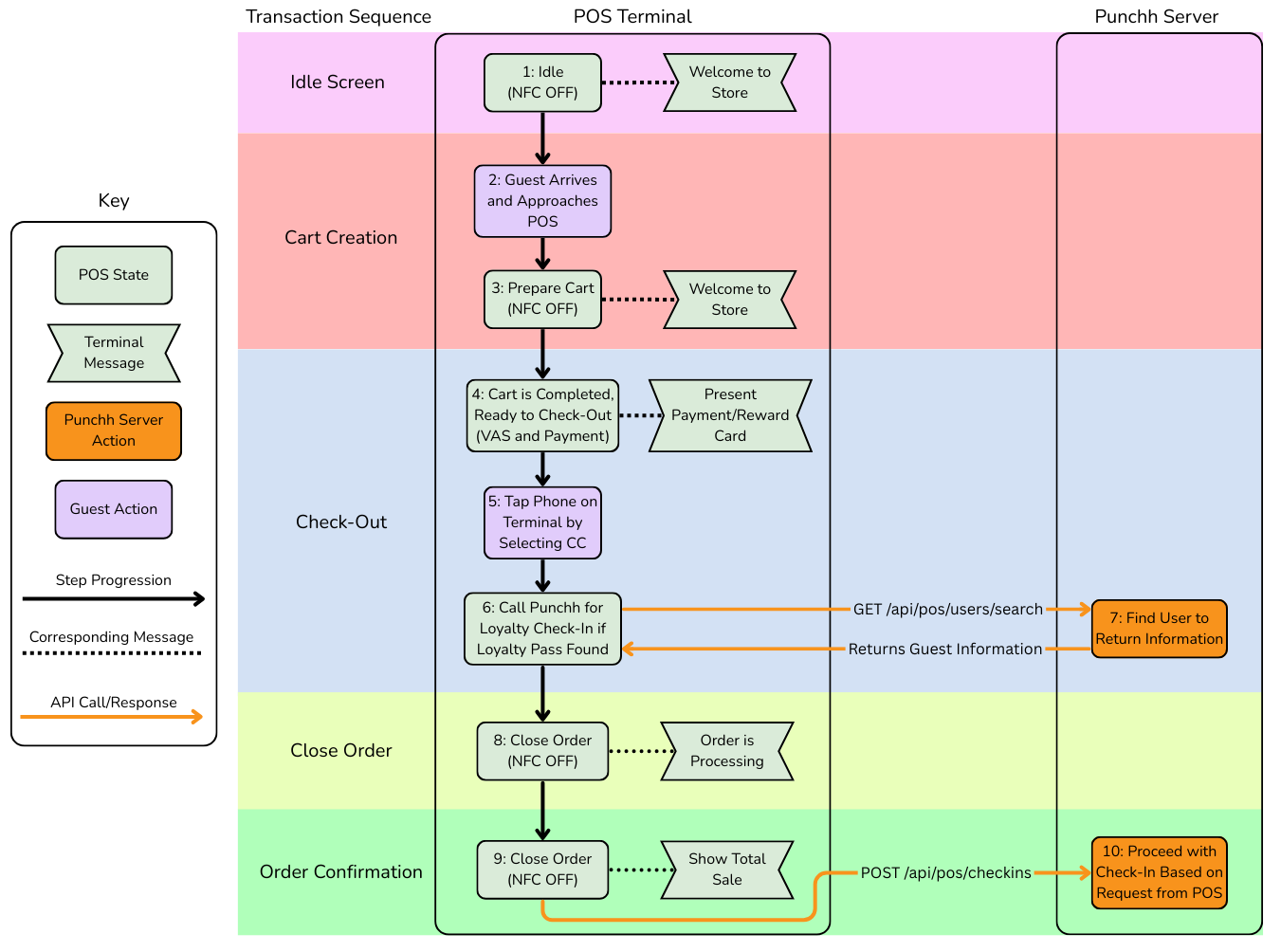
By meeting all the above requirements, the POS vendor can deliver a unified and integrated solution that incorporates loyalty functionality with Google Wallet passes, enabling a seamless tap-and-go experience for users through Google Smart Tap (Pass and Pay) at POS terminals.
Note: This integration is intended only to support Google Loyalty Passes.
Alternative to One-Tap Flow - Using Google Wallet Pass Without Any Terminal or POS Integration Change
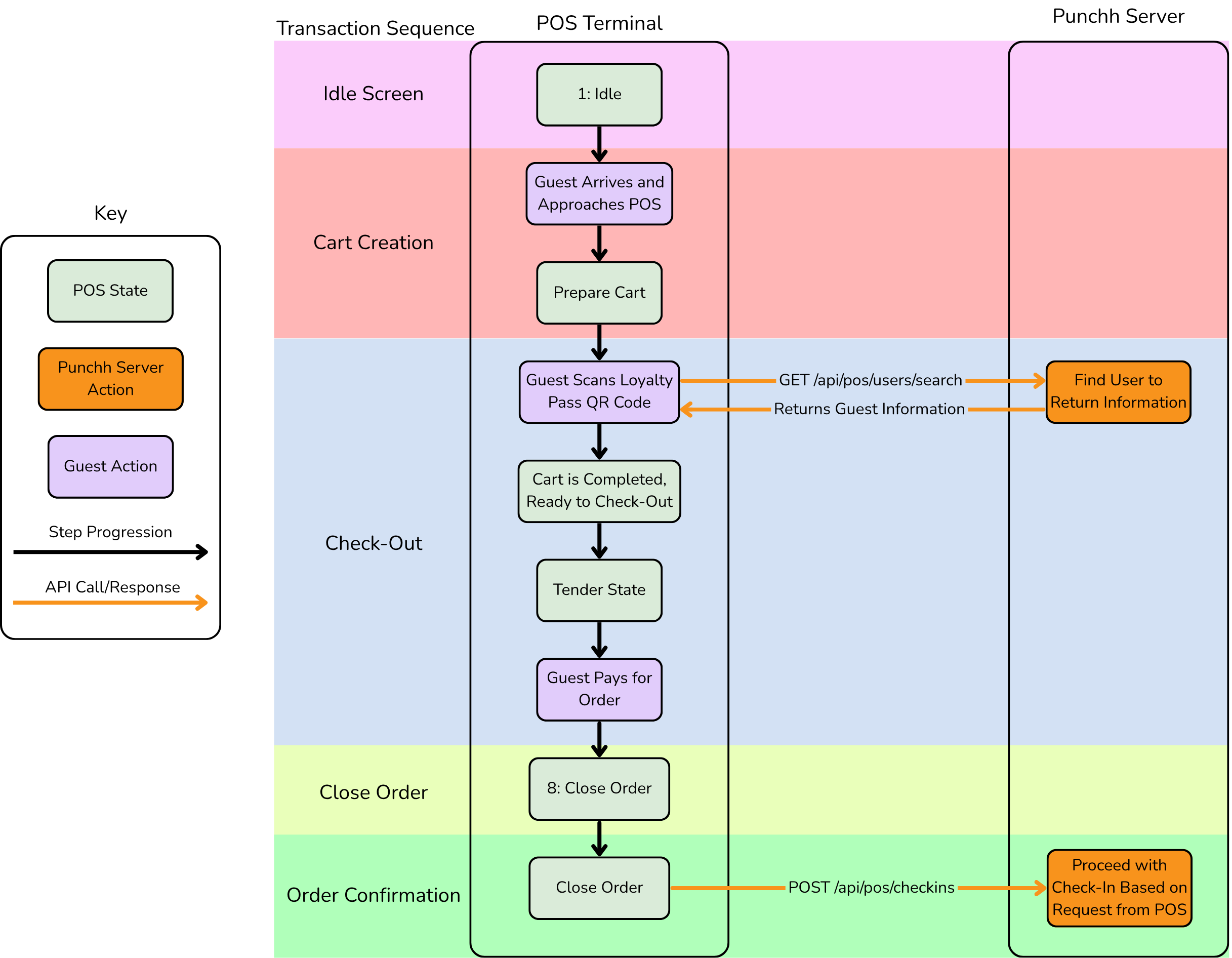
Google Loyalty Passes, part of Google Wallet, contain various details like loyalty points, the user’s name, email address, etc. If the store's payment terminal is not certified for Google Wallet's Smart Tap, incorporating QR codes into these passes enables easy scanning and validation, ensuring smoother and faster transactions or entry processes. This also allows for the use of Google Offer Passes at the POS (Refer to the Google Offer Pass Redemption section below).
The only requirement is that the POS system should have a Punchh integration and a scanner to scan the user’s QR code or barcode for user/redeemable look-up. The businesses need to manage only the pass distribution, which can be done through email, SMS, etc.
Basic Check-Out Flow With Google Loyalty Pass on the POS (Non-NFC)
Google Offer Pass Redemption
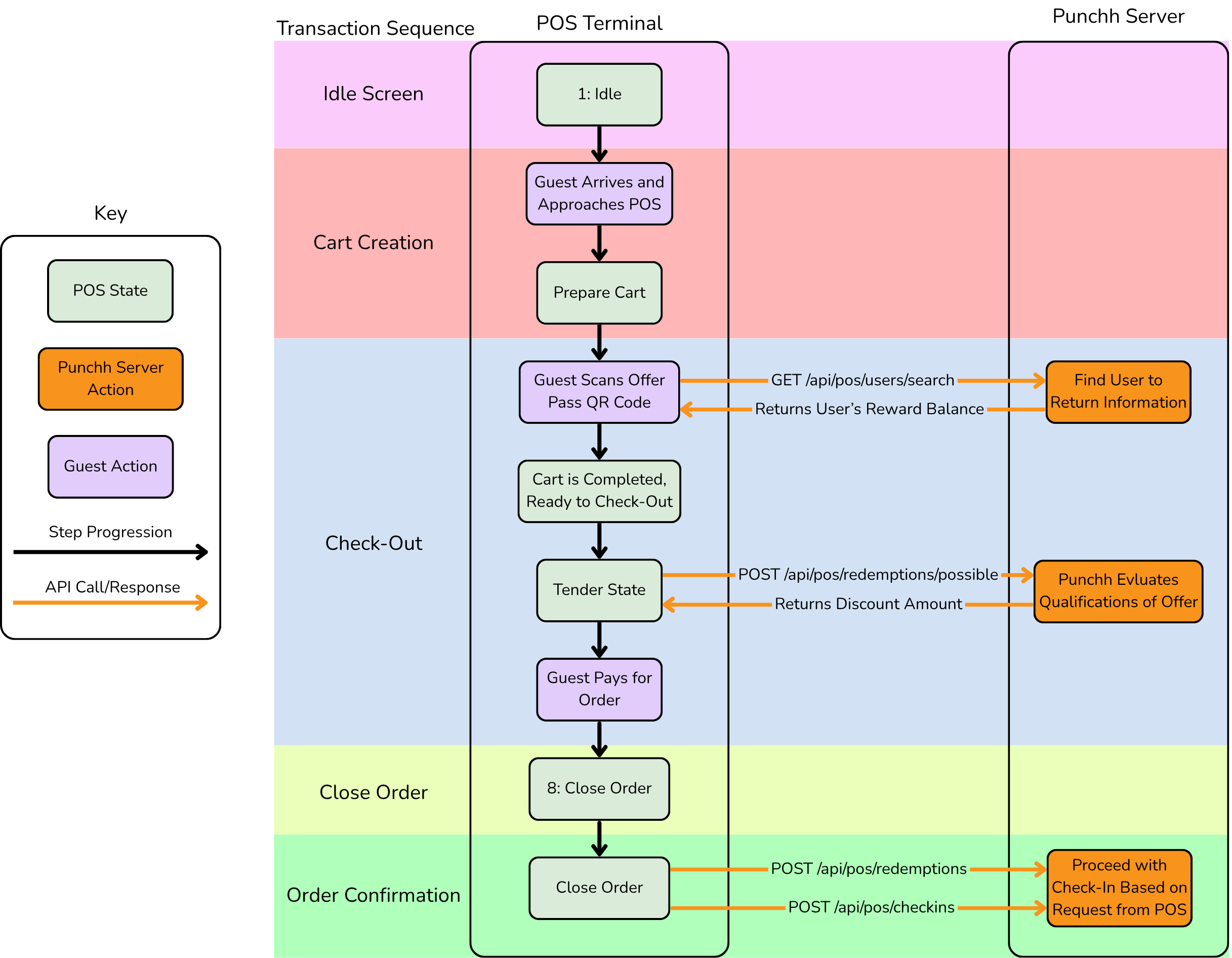
Google Offer passes, part of Google Wallet, allow both loyalty and non-loyalty guests to easily redeem coupons and promo codes. In addition, loyalty guests can also redeem their redeemables using offer passes. For coupons and promo codes, the offer pass QR code or barcode contains the coupon or promo code's redemption_code.
For reward offer passes, it contains the JSON payload {"reward_id":"REWARD_ID_GOES_HERE"}.
For redeemable offer passes, it contains {"redeemable_id":"REDEEMABLE_ID_GOES_HERE", "user_as_qrcode":"USER_QR_CODE_STARTING_WITH_P_GOES_HERE"}, allowing the POS to identify the redeemable and look up the guest during the same scan.
Because the POS cannot use redeemable_id to look up a user, the payload also includes user_as_qrcode, which the POS uses to perform the user look-up. See User Look-up and Fetch Balance API. For example:
Reward offer pass - Full JSON:
{"reward_id":"18671288"}
Redeemable offer pass - Full JSON:
{"redeemable_id":"186712", user_as_qrcode:"PPTQB"}
where PPTQB represents the user's QR code.
Basic Redemption Flow With Google Offer Pass on the POS (Redeemable)
User Enrollment
User enrollment through Google Pass in Punchh refers to a process where individuals can sign up or register for a loyalty program directly from a Google Wallet Pass on their Android phones. This method leverages the convenience and accessibility of Google Wallet to streamline the enrollment process, making it easier for users to join without needing to fill out forms manually on a website or in an app. Here is an overview of how it works and its benefits:
User Enrollment Initiated Through Google Wallet Pass
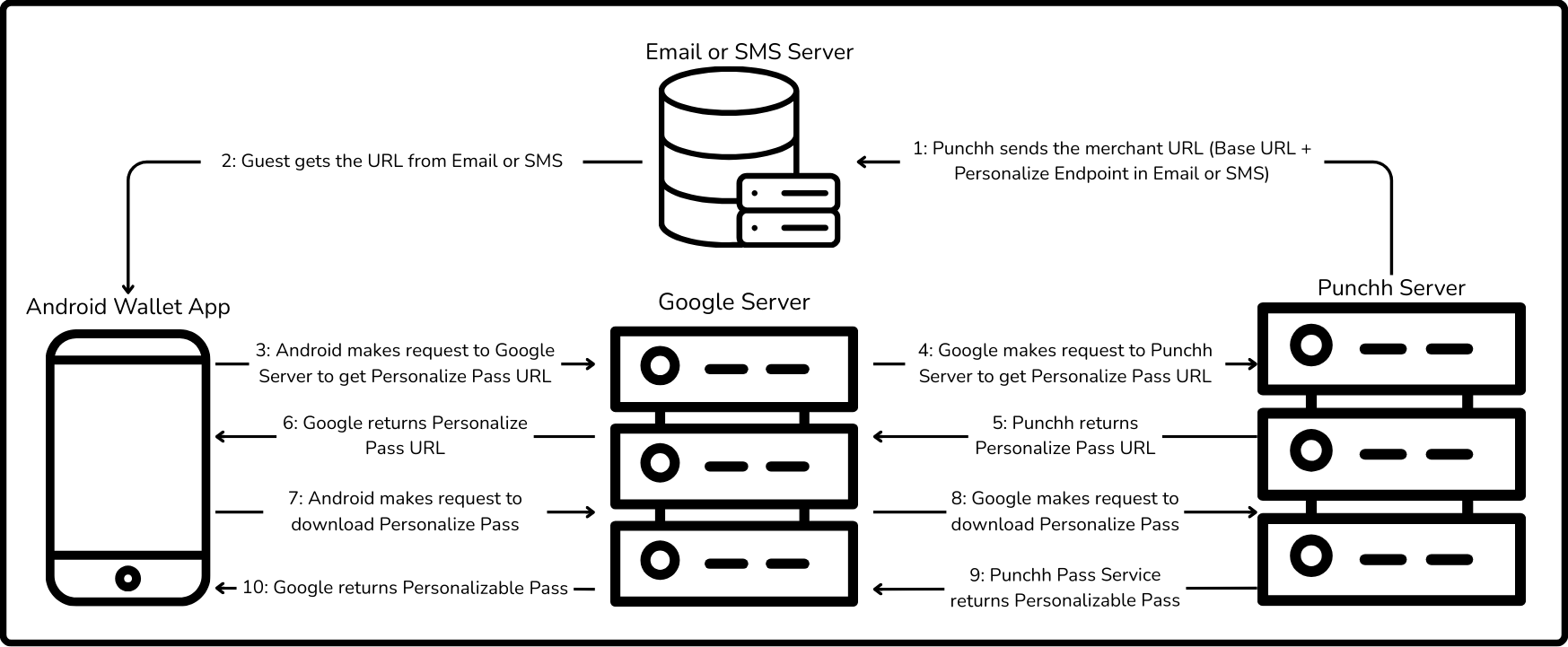
- Distribution of Google Wallet Pass - The business will distribute a link to download a personalizable pass through mass notification using a personalizable pass tag (
{{{personalize_android_pass_url_email}}}) in the message. This pass can be distributed via email, SMS, or terminal at the time of payment. - Interactive Elements - A personalizable pass includes interactive elements that, when tapped, initiate the enrollment process. This could be a "Sign Up" or "Join Now" button directly on the pass.
- Data Collection - Tapping the interactive element can lead the user to a pre-filled form within the pass or open a web page or app where additional information can be collected if necessary. The aim is to minimize the amount of data the user needs to enter manually, leveraging information already stored on the user's device when possible.
- Confirmation and Activation - Once the user submits the required information, the user receives confirmation of the enrollment directly on the user's device. The Google Wallet Pass can then be updated to reflect the user's new membership status, loyalty points, or access rights.
Flow Diagram for Non-NFC Pass Distributed Through Email or SMS
Non-NFC loyalty and offer passes can be distributed through email or SMS via Punchh campaigns. For instructions on distributing offer passes through campaigns, refer to the How to Distribute Offer Passes Using Campaigns article in the Punchh Support Portal.