Passkey Authentication
Overview
Passkey authentication provides a phishing-resistant, passwordless sign-in experience for guests using WebAuthn / FIDO2. Instead of password or one-time password (OTP), guests authenticate with a platform authenticator (Face ID, Touch ID, Windows Hello) or a roaming authenticator (hardware security key). The private key never leaves the device, making passkeys immune to phishing, credential stuffing, and replay attacks.
Passkey support is integrated into the Guest Identity Service (GIS) and works alongside existing authentication methods (Basic Auth, Advanced Auth OTP, and Social Login). Guests who already sign in with those methods can optionally enroll a passkey for faster future logins.
Your integration work is really two tasks:
- Recognize returning guests who already have a passkey, so you can offer the fast biometric sign-in instead of making them type a password or wait on an OTP.
- Invite guests who don't have one yet to enroll, at the right moment, in a way that is easy to accept and easy to dismiss.
Prerequisites
Before integrating passkeys, ensure the following:
- Passkeys enabled for the business — The
enable_passkeysflag must be set totruein the brand configuration on the Punchh platform. See Program Meta API. Contact your PAR representative if this is not already enabled. - Valid OAuth client — You need a doorkeeper application UID (
client) with the Advance Auth scope. Contact your PAR representative to enable this platform configuration. - Platform support — The brand's mobile app or web browser must support WebAuthn. Perform feature-detection checks before offering passkey options to the guest (see Browser and Platform Support).
How Passkeys Work
Passkeys use public-key cryptography. During registration, the guest's device generates a key pair — the public key is sent to GIS, while the private key stays on the device secured by the platform authenticator. During authentication, GIS sends a challenge, the device signs it with the private key, and GIS verifies the signature using the stored public key.
Two Ceremonies: Registration and Authentication
WebAuthn (the standard behind passkeys) always works in a two-step "ceremony": first the server hands the device a one-time challenge ("options"), then the device signs it and sends back proof ("the credential"). GIS exposes this as two request/response round trips for each direction:
| Ceremony | Step 1 — Get a challenge | Step 2 — Send proof |
|---|---|---|
| Registration (set up a new passkey) | POST /api2/passkey/registration_options |
POST /api2/passkey/registration |
| Authentication (sign in with an existing passkey) | POST /api2/passkey/authentication_options |
POST /api2/passkey/authentication |
Username-First Sign-In
GIS uses a username-first flow: the guest types their email (or phone) before any biometric prompt appears. This lets GIS look up the right account, apply the right brand's policy, and only then ask the device to show a Face ID / Touch ID / Windows Hello prompt. Practically, this means your login screen keeps its existing "enter email" step — you are adding a decision point after that step, not replacing it.
Two Levels of Availability
There are two independent questions your client needs answered, and they use two different signals:
| Question | Answered by | Scope |
|---|---|---|
| Is passkey enabled for this brand at all? | GET /api2/mobile/meta.json |
Business |
| Does this specific guest already have a passkey? | POST /api2/passkey/authentication_options response |
Individual guest |
Get both right and the rest of the integration falls into place naturally. See Brand Configuration Check and Detecting Guest Passkey Status for details.
Key Concepts
| Term | Description |
|---|---|
| Passkey | A phishing-resistant sign-in credential based on WebAuthn/FIDO2. Uses public-key cryptography; the private key never leaves the guest's device. |
| WebAuthn / FIDO2 | The open industry standard passkeys are built on; supported natively by all major browsers and mobile operating systems. |
| GIS | Guest Identity Service — the authentication platform behind this integration, managing all guest sign-in flows. |
| Relying Party (RP) | The GIS server that generates challenges and verifies cryptographic responses. |
| Registration / Enrollment | The one-time process of creating a passkey on a device, always performed post-login. |
| Authentication ceremony | The sign-in round trip: authentication_options (get a challenge) → authentication (prove possession of the private key). |
| Username-first flow | Guest enters their identifier (email/phone) before any biometric prompt, so GIS can apply the correct account and brand policy. |
| Platform Authenticator | A built-in device authenticator such as Face ID, Touch ID, or Windows Hello. |
| Roaming Authenticator | An external authenticator such as a YubiKey or other FIDO2 security key. |
| Attestation | The process during registration where the authenticator proves it created a new credential. |
| Assertion | The process during authentication where the authenticator proves possession of an existing credential. |
| Challenge | A server-generated random value that the authenticator signs to prove liveness and prevent replay attacks. Expires after 5 minutes. |
| Session Token | A one-time opaque token issued during the authentication flow that binds the assertion ceremony to a specific user and business. See POST /api2/passkey/authentication_options |
| Fallback | The sign-in method used when a passkey is not available (new device, unsupported browser, dismissed enrollment). Always available — no guest is ever locked out. |
| login_mode | Brand-level setting: "preferred" (passkey is the lead option, nudged more assertively) or "optional" (available but secondary). See Program Meta API |
Passkey APIs
| Method | Endpoint | Description | Auth Required |
|---|---|---|---|
POST |
/api2/passkey/registration_options |
Get passkey registration options (challenge, relying party ID and name, and user info) | Yes (Bearer token) |
POST |
/api2/passkey/registration |
Complete passkey registration | Yes (Bearer token) |
POST |
/api2/passkey/authentication_options |
Get passkey sign-in options | No |
POST |
/api2/passkey/authentication |
Complete passkey sign-in and receive JWT tokens | No |
All endpoints require the client query parameter (Doorkeeper application UID with AdvanceAuth scope).
For full request/response schemas and error examples, see the Passkey API Reference.
Brand Configuration Check
Before showing any passkey-related UI, ask GIS whether the feature is enabled for the current business. Passkeys must be explicitly enabled for each brand in GIS settings. This setting is disabled by default — so this check is not optional, and it should happen early (e.g., at session start, alongside whatever other initial configuration call your mobile or web app already makes).
Passkey Configuration in the Program Meta API Response
The Program Meta API response includes the enable_passkeys, login_mode, and external_idp_enabled parameters. These parameters are also available under the gis object. See Program Meta API
GET /api2/mobile/meta.json?client={client_uid}

{
  "enable_passkeys": true,
  "login_mode": "preferred",       // "preferred" | "optional"
  "external_idp_enabled": true,
  "gis": {
    "passkeys_enabled": true,
    "external_idp_enabled": false,
    "advance_auth_enabled": true,
    "basic_auth_enabled": false,
    "google_enabled": false,
    "apple_enabled": false,
    "facebook_enabled": false
    // ...other brand auth settings
  }
}
| Parameter | Type | What It Tells the Client |
|---|---|---|
enable_passkeys |
boolean | Master switch. If false, do not show any passkey UI — treat the app exactly as it behaves today. |
login_mode |
"preferred" | "optional" |
How assertively to surface passkeys once enabled. "preferred" — show passkey as the primary/first sign-in option and actively nudge enrollment. "optional" — passkey is available and can be offered, but should sit as a secondary option rather than the default path. |
gis.passkeys_enabled |
boolean | Same signal, mirrored inside the gis auth-settings block — some clients read auth capability flags from this nested object instead of the top level. Both should always agree; treat gis.passkeys_enabled as the source of truth if you ever see a mismatch and escalate to support. |
Important: Cache this configuration for the session, but re-fetch it on mobile or web relaunch. A brand admin can disable passkey after guests have already registered one — see Edge Cases & Fallback Behavior for what happens to those guests.
Mobile /Web App Decision Logic
- If
enable_passkeysisfalse, render the login screen exactly as it works today. No passkey copy, no enrollment prompts, no username-first change. - If
enable_passkeysistrueandlogin_modeis"preferred", proceed to Detecting Guest Passkey Status to check the individual guest, and treat passkey sign-in as the default path once a guest is confirmed to have one; actively surface the post-login enrollment nudge for guests who do not. - If
enable_passkeysistrueandlogin_modeis"optional", same checks, but keep passkey positioned as "also available" rather than the lead option — e.g., show it as a secondary button/link rather than pre-selected, and nudge enrollment less assertively (lower frequency, lower visual priority).
Detecting Guest Passkey Status
There is no standalone "has this user got a passkey?" look-up endpoint. Instead, the check is built into the first step of the sign-in ceremony: POST /api2/passkey/authentication_options. You call it with the guest's identifier (email or phone) as soon as they finish typing it on the login screen, and its response tells you everything you need:
| Result | Meaning | What the Client Should Do |
|---|---|---|
200 OK with challenge + allowCredentials + session_token |
This guest has a registered passkey for this business. | Immediately trigger the platform's WebAuthn "get" (biometric) prompt. See Passkey Authentication (Sign-In). |
422 passkey_authentication_not_available |
This guest has no passkey registered for this business (or the identifier does not resolve to a passkey-eligible account). | Fall back silently to the guest's normal sign-in method (password, OTP, or social) — no error message needed. This is an expected, common case. |
412 passkey_not_enabled |
Passkeys are disabled for this brand (should not normally occur if you checked the brand config first — treat as a signal to re-sync configuration). | Fall back to normal sign-in; optionally refresh cached brand configuration. |
422 passkey_identifier_required / passkey_invalid_identifier / invalid_phone_ext_format |
The email/phone the guest typed is not well-formed. | Show the same validation message you would show today for a bad email/phone — this is ordinary form validation, not a passkey-specific error. |
Why this design works well for UX: Because the check rides along with the username-first step guests already go through, there is no extra screen, no extra tap, and no visible delay for guests who do not have a passkey — the client simply continues straight into the familiar password/OTP/social flow.
Integration Flows
Passkey Registration (Post-Login Enrollment)
Passkey registration is an authenticated flow. The guest must already be signed in via Basic Auth, Advanced Auth (OTP), or Social Login before enrolling a passkey.
When to Prompt for Registration
Show the passkey enrollment prompt when all of the following conditions are met:
- The brand configuration has
enable_passkeysset totrue. - The guest just signed in with a non-passkey method (password, OTP, or social login). Do not make an extra look-up call to check — infer this from the sign-in method used.
- The guest's mobile app or web browser supports passkeys (see Browser and Platform Support). Never show the prompt on an unsupported browser or app version.
- The guest has not dismissed the prompt too recently. Apply a cool-down period so the same guest is not prompted on every login (see Enrollment UX Guidelines).
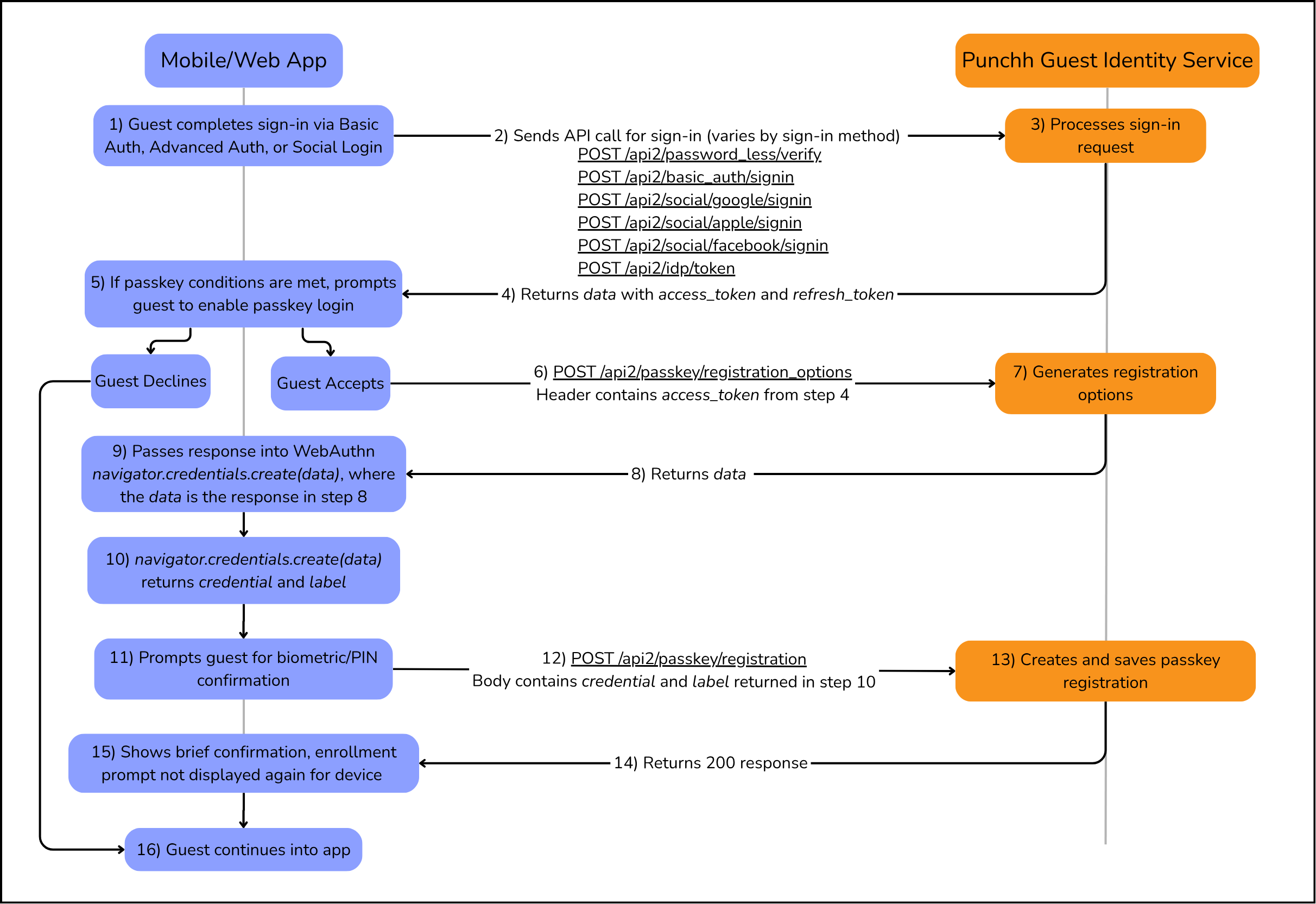
Step-by-Step
-
Guest completes sign-in via Basic Auth, Advanced Auth (OTP), or Social Login. GIS returns tokens as normal.
-
The mobile or web app evaluates registration conditions. If all conditions pass, show a lightweight, dismissible prompt (for example: "Sign in faster next time — set up Face ID / fingerprint / device PIN."). Include a clear "Not now" or skip action of equal visual weight to "Set up".
-
If the guest accepts, the mobile or web app calls
POST /api2/passkey/registration_optionswith:- The guest's Bearer access token (from step 1) in the
Authorizationheader client={client_uid}as a query parameter- No request body is needed
- The guest's Bearer access token (from step 1) in the
-
The mobile or web app passes the returned options to WebAuthn. The response contains
challenge,rp(relying party),user, andpubKeyCredParams. Pass these into the platform's WebAuthnnavigator.credentials.create()call. The device prompts the guest for biometric or PIN confirmation and generates a new key pair. -
The mobile or web app sends the attestation to GIS. Post the WebAuthn attestation result to
POST /api2/passkey/registration:{ "credential": { "id": "BASE64URL-ENCODED_CREDENTIAL_ID_GOES_HERE", "type": "public-key", "response": { "clientDataJSON": "BASE64URL-ENCODED_CLIENT_DATA_JSON_GOES_HERE", "attestationObject": "BASE64URL-ENCODED_ATTESTATION_OBJECT_GOES_HERE" } }, "label": "My iPhone" }The
labelfield is optional — it provides a human-readable name for the passkey and defaults to "Passkey" when omitted. -
On success (HTTP 200), show a brief confirmation (for example: "You're all set — next time, just use Face ID") and continue the guest into the app. Do not show the enrollment prompt again for this guest on this device.
-
If the guest taps "Not now", dismiss the prompt immediately with no friction. Do not block or delay navigation into the app.
Registration Options Response
The POST /api2/passkey/registration_options response returns the fields needed to call navigator.credentials.create():
{
  "data": {
    "challenge": "CHALLENGE_GOES_HERE",
    "rp": {
      "id": "loyalty.example.com",
      "name": "Coffee Shop"
    },
    "user": {
      "id": "USER_ID_GOES_HERE",
      "name": "test@example.com",
      "displayName": "DISPLAY_NAME_GOES_HERE"
    },
    "pubKeyCredParams": [
      { "type": "public-key", "alg": -7 }
    ]
  }
}
| Field | Description |
|---|---|
challenge |
Base64url-encoded random challenge. Valid for 5 minutes. |
rp.id |
Relying party identifier (domain). Credentials are scoped to this origin. |
rp.name |
Human-readable relying party name displayed during the ceremony. |
user.id |
Base64url-encoded opaque user handle (not the email). |
user.name |
The guest's email or phone number. |
user.displayName |
Display name shown in the passkey UI. Currently set to the same value as name. |
pubKeyCredParams |
Supported signing algorithms. -7 = ES256 (ECDSA with SHA-256). |
Passkey Authentication (Sign-In)
Passkey authentication is an unauthenticated flow — no existing tokens are required. The guest provides their email or phone number, and the device performs the biometric/PIN challenge.
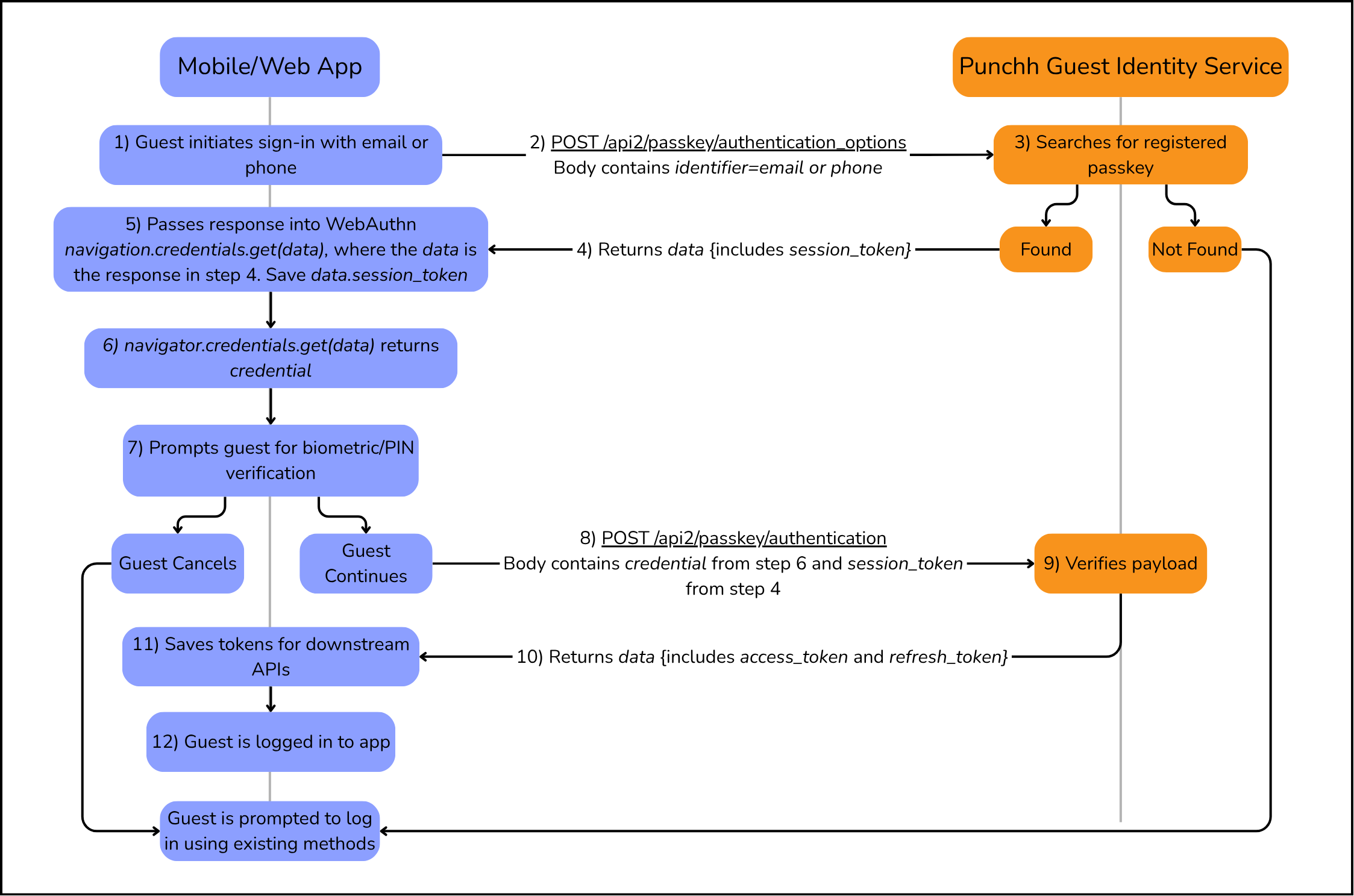
Step-by-Step
-
Guest initiates sign-in. The mobile or web app presents a passkey sign-in option alongside other authentication methods.
-
The mobile or web app calls
POST /api2/passkey/authentication_optionswith:client={client_uid}as a query parameter- Request body containing the guest's identifier:
The
{ "identifier": "test@example.com" }identifiercan be an email address or a phone number.
-
GIS returns assertion options and a session token. The response contains WebAuthn
PublicKeyCredentialRequestOptionsplus a one-timesession_token:{ "data": { "challenge": "CHALLENGE_GOES_HERE", "rpId": "loyalty.example.com", "allowCredentials": [ { "type": "public-key", "id": "ID_GOES_HERE" } ], "session_token": "SESSION_TOKEN_GOES_HERE" } }A
200response means the guest has at least one registered passkey — proceed with the biometric prompt. A422withpasskey_authentication_not_availablemeans the guest has no passkey for this business — this is the expected common case; silently fall back to password / OTP / social sign-in without surfacing an error. -
Client passes the options to WebAuthn. Call
navigator.credentials.get()with the returnedchallenge,rpId, andallowCredentials. The device prompts the guest for biometric or PIN verification. -
Client sends the assertion result to GIS. Post the assertion payload plus the
session_tokentoPOST /api2/passkey/authentication:{ "session_token": "SESSION_TOKEN_GOES_HERE", "credential": { "id": "BASE64URL-ENCODED_CREDENTIAL_ID_GOES_HERE", "type": "public-key", "response": { "clientDataJSON": "BASE64URL-ENCODED_CLIENT_DATA_JSON_GOES_HERE", "authenticatorData": "BASE64URL-ENCODED_AUTHENTICATOR_DATA_GOES_HERE", "signature": "BASE64URL-ENCODED_SIGNATURE_GOES_HERE" } } }The
session_tokenmust match the one returned in step 3. Cross-business reuse of session tokens is rejected. -
On success (HTTP 200), GIS returns JWT access and refresh tokens:
{ "data": { "access_token": "ACCESS_TOKEN_GOES_HERE", "refresh_token": "REFRESH_TOKEN_GOES_HERE", "expires_in": 3600 } }Use these tokens to access downstream APIs (Ordering, Loyalty, etc.) with
Authorization: Bearer <access_token>. This is the same token shape returned by every other GIS login method — no downstream integration changes are needed. -
If the guest cancels the biometric prompt, or the device reports an error → treat it exactly like a cancelled login attempt: return the guest to the sign-in screen with their existing methods still available (see Edge Cases & Fallback Behavior).
Important: The
session_tokenfromauthentication_optionsis single-use and scoped to the business that issued it. Do not cache or reuse it across a retry — if the ceremony fails or times out, start over fromauthentication_options.
Browser and Platform Support
Never show passkey UI (sign-in offer or enrollment nudge) unless the current client can actually complete a WebAuthn ceremony. Checking this client-side avoids dead ends and the need for GIS to know anything about device capability.
Web
if (window.PublicKeyCredential &&
    typeof PublicKeyCredential
      .isUserVerifyingPlatformAuthenticatorAvailable === "function") {
  const supported = await PublicKeyCredential
      .isUserVerifyingPlatformAuthenticatorAvailable();
  // supported === true → safe to show passkey UI
}
This covers current Chrome, Safari, Edge, and Firefox — no browser extension or plug-in install is required for the guest. If the check fails or the API is absent, treat the guest exactly as a pre-passkey guest: no passkey UI at all, standard fallback methods only.
Mobile App
Passkey registration and use require the app to be on the release that ships the passkey SDK/code path. Gate the feature on app version:
- Maintain a minimum-supported-version constant per platform (iOS / Android) for passkey support, sourced from your release notes for the passkey-enabled build.
- On app launch, compare the running app version against that constant before evaluating any passkey eligibility from the brand configuration check, guest passkey detection, or registration prompt logic.
- Guests on older app versions should see zero difference in their experience — they keep using Basic Auth, Advanced Auth, or Social Login exactly as they do today. Do not show an error, broken button, or partial passkey UI.
Recommendation: It is strongly recommended to pair this with an app-update prompt (banner/nudge, not a hard block) once passkeys roll out broadly, so guests on old versions have a path to the new experience.
Error Handling
All passkey error responses follow the standard GIS error format:
{
  "errors": {
    "error_key": ["Human-readable error message."]
  }
}
The errors below are grouped by how your client should react — use these groupings to build one shared error handler rather than bespoke logic per endpoint.
Silent Fallback — Never Show a Passkey-Specific Error
These are expected, common cases. Continue straight into the guest's normal sign-in flow with no visible error.
| Error Key | Endpoint(s) | Client Action |
|---|---|---|
passkey_authentication_not_available |
authentication_options |
Guest has no passkey. Continue straight into standard sign-in (password / OTP / social). This is the most common "error" you will see, and it is not a failure. |
passkey_not_enabled |
All | Brand does not have the feature enabled. Re-sync configuration; show standard sign-in. |
Recoverable — Restart the Ceremony
These are transient or timing issues. Retry automatically before surfacing anything to the guest.
| Error Key | Endpoint(s) | Client Action |
|---|---|---|
passkey_challenge_missing |
registration, authentication |
The 5-minute challenge window lapsed (e.g., guest took too long, or app backgrounded). Silently request fresh options and retry once; if it happens twice, fall back. |
invalid_token |
registration_options, registration |
Access token expired mid-registration flow. Refresh the token and retry; if refresh fails, send the guest to sign in again. |
User-Facing Message Required
Show a message, but keep it non-technical.
| Error Key | Endpoint(s) | Suggested Guest-Facing Message |
|---|---|---|
passkey_registration_failed / passkey_authentication_failed |
registration, authentication |
"Something went wrong. Please try again, or use another sign-in method." |
passkey_invalid_origin |
registration, authentication |
Same generic message as above — this is a configuration issue, not something the guest can fix; log for platform team follow-up. |
passkey_registration_options_failed |
registration_options |
"Couldn't set up passkey right now. Please try again." — transient; do not block the guest's session. |
passkey_identifier_required / passkey_invalid_identifier / invalid_phone_ext_format |
authentication_options |
Standard "Enter a valid email or phone number" validation copy — reuse existing form-validation UI. |
user_deactivated |
All | "This account is deactivated. Contact support for help." |
config_error |
registration_options |
Not guest-fixable. Log the error and escalate to the platform team. Do not show passkey UI. |
invalid_client |
All | Not guest-fixable. Log and escalate. |
identity_resolution_failed |
authentication |
"Something went wrong. Please try again." — transient backend issue; does not indicate a problem with the passkey itself. |
Treat as Success
| Error Key | Endpoint(s) | Why |
|---|---|---|
passkey_already_registered (409) |
registration |
The guest already has a passkey on this device. There is nothing to fix — show the same confirmation you would show for a fresh registration and continue. |
Full Error Code Reference
| HTTP Status | Error Key | Description |
|---|---|---|
400 |
client |
Missing or empty client query parameter. |
400 |
config_error |
Passkey allowed origins or RP ID not configured for this business. Not guest-fixable — escalate to the platform team. |
401 |
invalid_token |
Access token is expired or invalid (registration endpoints only). Refresh the token and retry. |
403 |
user_deactivated |
The guest's account has been deactivated. Stop the flow and show account-deactivated messaging. |
409 |
passkey_already_registered |
A passkey for this account is already registered. Treat as success — the guest is already enrolled. |
412 |
passkey_not_enabled |
Passkey authentication is not enabled for this business. Re-sync brand configuration and do not show passkey UI. |
412 |
invalid_client |
The client UID is invalid or not found. |
422 |
passkey_identifier_required |
Email or phone number is required (authentication_options). |
422 |
passkey_invalid_identifier |
Identifier must be a valid email address or phone number with country code. |
422 |
passkey_authentication_not_available |
The guest has no passkey for this business. This is the expected common case — silently fall back to normal sign-in. |
422 |
passkey_challenge_missing |
The challenge has expired (5-minute TTL). Restart from the corresponding *_options call. |
422 |
passkey_registration_failed |
Failed to persist the passkey after attestation verification. |
422 |
passkey_authentication_failed |
WebAuthn assertion verification failed. Show a generic sign-in-failed message and offer fallback methods. |
422 |
passkey_invalid_origin |
Passkey origin is not allowed for this business. Verify the configured allowed origins. |
503 |
identity_resolution_failed |
Transient backend failure. Safe to retry later — does not indicate a problem with the passkey itself. |
Enrollment UX Guidelines
These are the practices that make the difference between guests loving the passkey experience and guests feeling nagged. They apply on top of the mechanics in the integration flows above.
| Best Practice | Detail |
|---|---|
| Offer, do not force | Every prompt needs an equally easy "Not now" — same size button, same tap target, no confirmation dialog to dismiss a dismissal. |
| Nudge again, but not every time | Re-offer at most once every few logins (e.g., every 3rd–5th successful sign-in) for a guest who has dismissed before — not on every single visit. |
| Time it right | The moment right after a successful login is the best moment — the guest is already authenticated (required for registration) and already in a "things are working" mindset. |
| Keep the copy benefit-first | Lead with the guest's payoff ("Sign in faster next time") rather than the mechanism ("Register a WebAuthn credential"). |
| Confirm success briefly and move on | A one-line confirmation, then straight back into the app — enrollment should never feel like a detour. |
Respect login_mode |
In "preferred" mode, lead with passkey as the default path for enrolled guests and nudge more visibly. In "optional" mode, keep it available but secondary. |
| One-time per device | Once a passkey is successfully registered, do not show the enrollment prompt again for that guest on that device. |
| Use familiar terms | Use "Face ID", "fingerprint", or "device PIN" rather than technical terms like "passkey" or "WebAuthn" in guest-facing copy. |
Practices to Avoid
| Practice | Why |
|---|---|
| Don't show the enrollment prompt mid-task | For example, in the middle of checkout or ordering. Wait for a natural breakpoint (immediately post-login, before the guest starts their task, is usually right). |
| Do not show any passkey UI on an unsupported device/browser | A passkey button that does not work is worse than no button. |
| Do not repeat the enrollment ask every single session | Escalating frequency reads as nagging and can sour opinion of the brand's app. |
| Do not surface raw error keys or technical language | Never show "WebAuthn attestation failed" to guests — always translate to plain language per the error handling reference. |
| Do not block or delay the guest's sign-in for the enrollment nudge | Tokens should already be issued before the prompt appears; the prompt is additive, never gating. |
Suggested Enrollment UI Text
| Moment | UI Text |
|---|---|
| First offer (after first login) | "Sign in faster next time — set up Face ID/fingerprint/your device PIN. No password, no waiting for a code." |
| Decline action | "Not now" (never "No" / "Never" — keep the door open for the next natural nudge) |
| Success confirmation | "You're all set. Next time, just use Face ID / your fingerprint to sign in." |
| Returning-guest sign-in prompt | "Sign in with Face ID" / "Use your fingerprint" / "Sign in with your device PIN" (match the platform's own terminology). |
Edge Cases & Fallback Behavior
| Scenario | Expected Client Behaviour |
|---|---|
| Guest gets a new phone / lost their device | authentication_options returns passkey_authentication_not_available for the new device (the old passkey is bound to the old device's key pair). Client falls back to password / OTP / social. Once signed in on the new device, the normal enrollment nudge offers a fresh passkey registration. |
| Guest cancels the biometric prompt | Treat like any cancelled login attempt — return to the sign-in screen with all existing methods available. Do not log this as an error state to the guest; it is a normal, expected interaction. |
| Browser/device does not support WebAuthn | The capability check (see Browser and Platform Support) should have already prevented any passkey UI from appearing — guest sees their normal sign-in options and nothing else. |
| Brand disables Passkeys after guests already enrolled | enable_passkeys flips to false. Client stops offering passkey sign-in and stops the enrollment nudge. Guests who already registered a passkey simply fall back to their other method — GIS marks the underlying passkey inactive server-side until the brand re-enables the feature, so no client-side clean-up is required. |
| Guest tries to register a second passkey on a device that already has one | Registration returns 409 passkey_already_registered. Treat as success (guest is enrolled either way) and continue into the app — do not surface this as an error. |
| Guest is on an app version predating passkey support | Client-side version gate prevents any passkey code path from running. Guest experience is entirely unchanged — same as before this feature existed. |
| Ceremony session expires mid-flow (challenge TTL passed) | Both registration and authentication challenges expire after 5 minutes. Client should silently request fresh options once and retry; surface a message to the guest only if the retry also fails. |
Testing Checklist
Use this before sign-off. Each row should be verified on at least one supported mobile platform and one supported browser.
| # | Scenario | Pass Criteria |
|---|---|---|
| 1 | Brand configuration: enable_passkeys = false |
No passkey UI anywhere in the sign-in or post-login flow. |
| 2 | Brand configuration: enable_passkeys = true, login_mode = preferred |
Passkey offered as default for enrolled guests; enrollment nudge shown with normal frequency. |
| 3 | Brand configuration: enable_passkeys = true, login_mode = optional |
Passkey available but secondary; enrollment nudge shown less assertively. |
| 4 | New guest signs up | No passkey prompt appears during sign-up — only after first successful sign-in following sign-up. |
| 5 | Guest accepts enrollment nudge | WebAuthn create() ceremony completes; confirmation shown; guest continues into app; nudge does not reappear on this device. |
| 6 | Guest dismisses enrollment nudge | Returns to app immediately, no error; nudge reappears only after the defined cool-down/login count. |
| 7 | Returning guest with passkey signs in | authentication_options returns 200; biometric prompt appears automatically after email entry; guest lands in-app with valid tokens. |
| 8 | Returning guest without passkey signs in | authentication_options returns 422; guest proceeds to normal password/OTP/social entry with no visible delay or error. |
| 9 | Guest cancels biometric prompt during sign-in | Returns to sign-in screen; all fallback methods still available. |
| 10 | Unsupported browser | No passkey UI shown at all; guest experience identical to pre-passkey baseline. |
| 11 | Old app version | No passkey UI shown; app functions exactly as before this release. |
| 12 | Brand disables Passkeys after guest enrollment | Enrolled guest falls back cleanly to their prior method on next login; no crash or broken state. |
| 13 | Duplicate registration on same device | 409 passkey_already_registered handled as success, not surfaced as an error. |
| 14 | Challenge expiry (wait 5+ minutes mid-ceremony) | Client retries automatically with a fresh challenge before showing any message to the guest. |
Support and Escalation
For questions on this guide, endpoint behavior, or brand configuration:
- API / schema questions: Refer to the GIS API documentation — it is the source of truth for exact field names and error codes.
- Brand configuration (enabling Passkeys, login mode, allowed origins, Relying Party ID): Business admins configure this in GIS settings. Contact your PAR representative to update this platform configuration.
- Bugs or unexpected error responses: Include the endpoint,
clientUID, and full error payload (error key + message) when reporting — this is the fastest path to a resolution.