Make Your First POS API Call
The information provided on this page allows developers to make API calls to the Punchh server in production and test environments.
Authorization
A combination of the API key (i.e., location key) and business key needs to be passed in the Authorization header to make API calls. For example:
Authorization: Token token=LOCATION_KEY_GOES_HERE, btoken=BUSINESS_KEY_GOES_HERE
If you do not have these keys, reach out to your Punchh representative for further assistance.
If you already have the location key or business key and you know which environment each key belongs to (production or testing), you can make your first API request.
User Agent
All API requests MUST include a valid User-Agent header. This allows Punchh to contact you if there are problems. Requests with no User-Agent header will be rejected.
User Agent Format
The integrator should include the Integrator/Vendor/Agency Name, Integration type (POS/Kiosk/OnlineOrder/Mobile/Web/SystemIntegrator/Middleware), and Integration Version Number in the User-Agent header in the following format.
IntegratorName/IntegrationType/VersionNumber
Example User Agent
NCRSilverPro/POS/3.5.6b
Base URIs
Please reach out to your Punchh representative in order to receive the sandbox and production base URLs that you should be using in order to consume the Punchh APIs.
Required Parameters
Required parameters are passed in API calls as shown in the following example.
$ curl "https://SERVER_NAME_GOES_HERE.punchh.com/api/pos/locations/configuration"
-H 'Authorization: Token token=LOCATION_KEY_GOES_HERE, btoken=BUSINESS_KEY_GOES_HERE'
-X GET
Testing Your Integration With iFrame
Punchh provides a loyalty iFrame URL that you can use to test the POS integration with the Punchh server in a testing environment. If you do not have the iFrame URL, reach out to your Punchh representative for further assistance. You can create a test user account on iFrame and use this account to 1) perform test check-ins and redemptions, and 2) develop and test other features. The same user can be used for all of the iFrame URLs provided. You can also generate a redemption code using iFrame.
To test whether the barcode is working properly, you can use the iFrame account to enter the barcode that you generated when performing the check-in on the test account. Barcodes are generated using short_key, which is returned by the Location Configuration API. You can create check-ins using those barcodes on iFrame.
User Search Keys
The User Look-up and Fetch Balance and Create Check-in API requests require one of the following fields to work as expected. Rules to identify various search keys supported by Punchh are also mentioned.
| Search Key | Description |
|---|---|
| Phone Number | 10-digit number - e.g., 1234567890 Min/Max length: 10/10 Generally, the user provides a phone number to the POS operator and the operator enters it manually. |
| A string containing @ - e.g., test@example.com Min/Max length: 6/255 Generally, the user provides an email address to the POS operator and the operator enters it manually. |
|
| user_as_qrcode | There are three types of strings that are passed in this parameter: 1) 2-12 character alphanumeric string starting with "P" - e.g., PIE98EY Min/Max length: 2/12 Generally, the POS scans this string from the user's phone using a QR code scanner. 2) String enclosed by 'PUNCHH' in the following format: PUNCHHenclosedstringPUNCHH. - e.g., PUNCHHBAhJIiM2MTE3NjcyOmJyeXNvbnJlZWRAew9wbWFpbC5jb20GOgZFRg==- -79a56daed845ff64eed4c1e55272f0babb23caf4PUNCHH Min/Max length: 13/512 The POS always scans this string from the user's phone using a QR code scanner. 3) 8 character alphanumeric string starting with “S” - e.g., S12A34B5 Min/Max length: 8/8 This code is a short-lived code with a lifespan of 5 minutes. A new code is generated when a code expires. Generally, the POS scans this string from the user's phone using a QR code scanner. If a QR code scanner is not available, the user can read it to the POS operator and the operator can enter it on the POS manually. |
| single_scan_code | String containing a UUID which is passed in the single_scan_code parameter in the User Look-up and Fetch Balance API. The POS needs to consume the response of the User Look-up and Fetch Balance API to get the payment mode, redemption type, ID of the reward that the guest wants to redeem, and tip amount.Min/Max length: 6/34 Single Scan Flow should be implemented on the POS to use this. The POS always scans this UUID using a QR code scanner from the user's phone. |
| redemption_code | 7-digit number - e.g., 1234567 or 0123456 Min/Max length: 7/7 A redemption code can be used to fetch a user or create a check-in before or after processing it. Generally, the POS scans this string from the user's phone using a QR code scanner. If the QR code scanner is not available, the user can read it to the POS operator and the operator can enter it on the POS manually. |
| card_number | 16-digit number - e.g., 1234567890123456 Min/Max length: 16/16 The POS can get this card number either by swiping the magnetic card or by scanning a QR code, or the user can read it to the POS operator. These are Punchh membership cards, and they should not be confused with gift cards. These cards only track the loyalty status of a user. |
| Apple NFC Token | User identifier that allows look-up of user information generated from the Apple Pass. Each NFC-enabled pass contains a 64-byte data element that can identify a customer. This data element can represent a rewards card for a loyalty program, a stored value card, or a ticket. Apple Wallet only transmits this data element to an NFC-enabled terminal that is compatible with the Apple value-added services protocol. |
Check-in Workflow
A check-in essentially records the loyalty user’s visit along with order details (such as menu items ordered, prices, etc.). For creating a check-in at POS, the user is asked to provide any one of the following:
- Email address
- Phone number
- Card number
- Redemption code
- QR code
- Apple NFC token
A check-in is then processed using any one of the following:
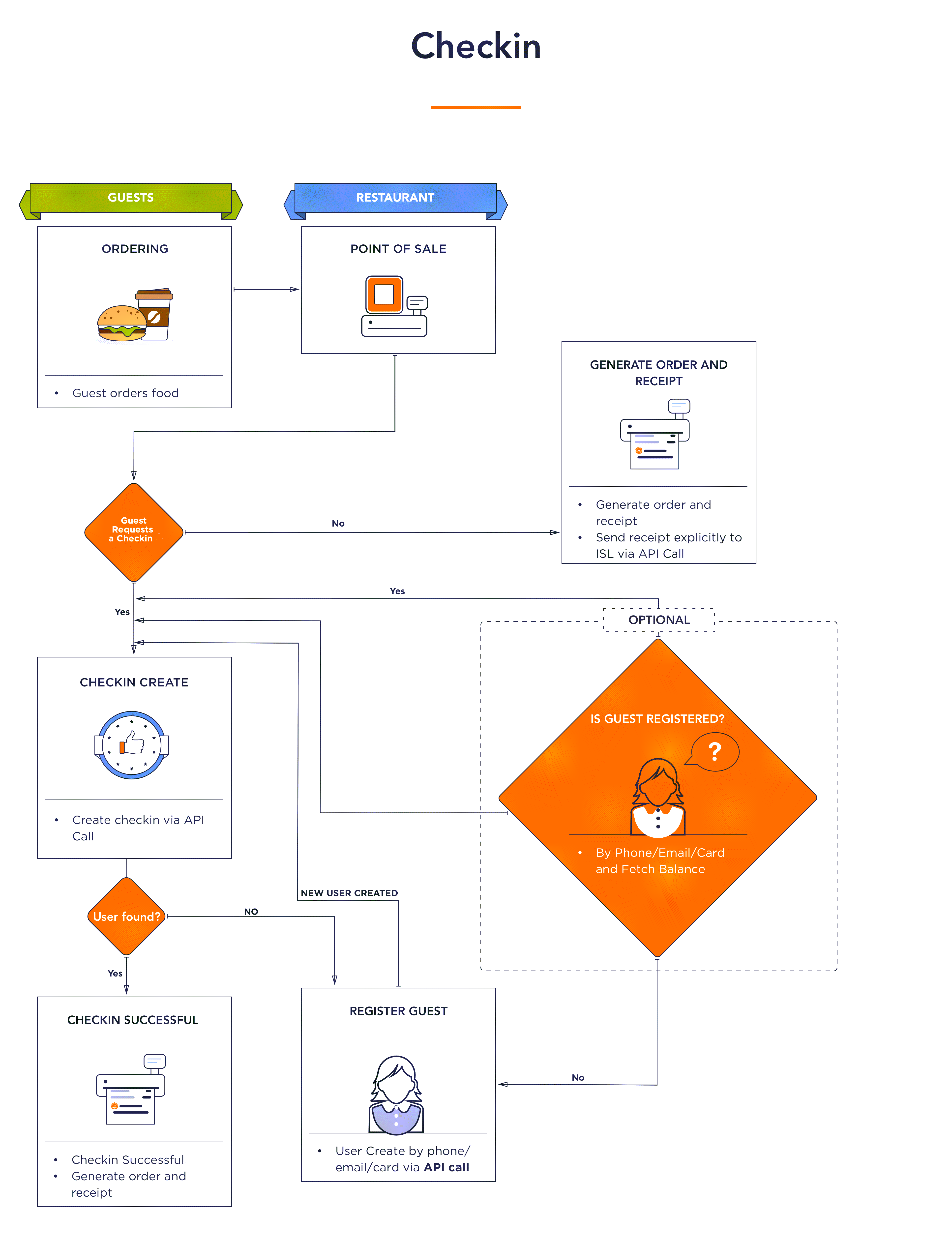
Checking if the guest has an existing loyalty account
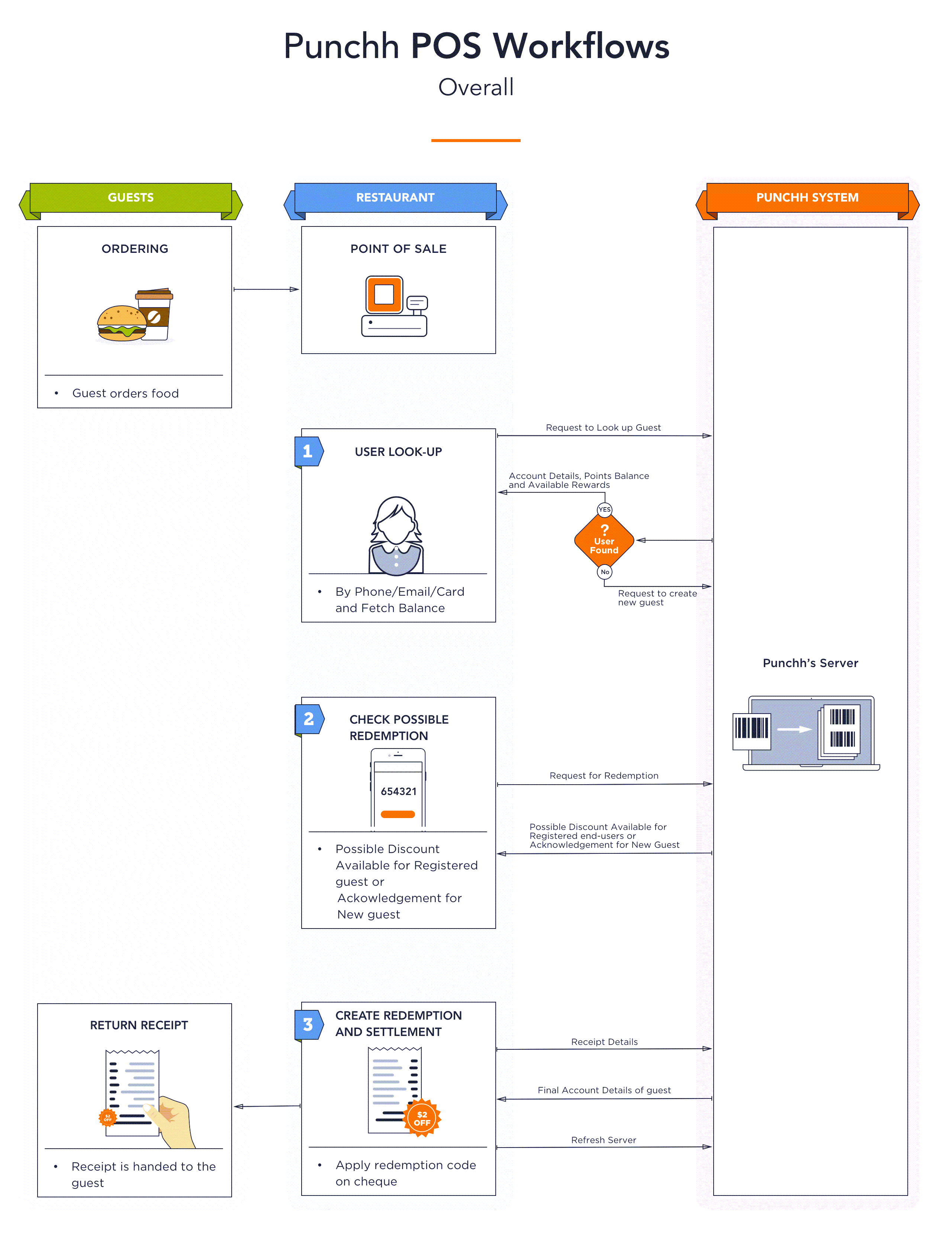
For this purpose, the POS makes a User Look-up and Fetch Balance API call to the Punchh server that returns either of the following responses:
-
User not found: In this case, the ‘User Not Found’ error is returned. The guest is then registered, for which the POS makes the Create User API call to the Punchh server to create a loyalty account for the user. The order is then taken from the guest user, and a loyalty check-in is created for which the POS makes the Create Check-in API call to the Punchh server.
-
User found: In this case, the guest user's loyalty account details are returned. The order is then taken from the guest user, and a loyalty check-in is created for which the POS makes a Create Check-in API call to the Punchh server.
Directly creating a loyalty check-in
The POS makes a Create Check-in API call to the Punchh server. If the user does not have an existing loyalty account, the call will fail with the "HTTP 404 - not found" response code.
Redemption Types
Redemption is a discount that can be applied to an order. While ordering at the POS, loyalty guests can request to redeem rewards (available in their account) on the current order. The reward offers are configured by the business. For example, the amount of a loyalty guest's order is $8 and the guest's account contains $10 as redeemable. At the POS, the guest redeems $8 from the account and applies it to the order. This reduces the final amount of the order to $0 and leaves $2 as redeemable in the guest's account.
The user object provides information regarding every possible balance the user may have. It may not be possible to determine which type of redemption should be available for the user. So a configuration is needed on the POS vendor side to determine which type of redemption should be available for the entire business based on the program type information returned in the Program Meta API call.
Punchh supports different kinds of discounts depending on the loyalty program configured for the business (see Punchh Offers and Program Types). What type of discount will be available to a loyalty guest depends on the loyalty program chosen by the business. The following table lists the kinds of discounts that Punchh supports through various loyalty programs.
| Redemption Type | Description |
|---|---|
| Reward | Offer available to the user. This may be awarded to the user as a result of some campaign or may be explicitly gifted by a business admin. No points will be deducted for the redemption of this offer. A reward is added to the user account when a user performs a particular action mentioned in a campaign. For example, if the user places an order under a Facebook login or on a special day/event like Thanksgiving, Christmas, etc., rewards are added to the user's account. |
| Redeemable | Redeemables are core offers configured in the Punchh platform. So for every reward, you will find the corresponding configured redeemable in the redeemable object. Also, if a business is configured for the "points unlock program", then redemption of these offers results in a deduction of points. |
| Card Completion | Applicable after a certain number of visits by a user, as configured by a business. A user can hold multiple cards. For example, if the user has had seven check-ins at the POS, then on the eighth check-in one card will be completed and the user will be offered rewards. This type of discount is allowed in visit-based businesses. |
| Discount | Banked rewards that can be used for redemption of banked currency. This will be available if the program structure configured is "points convert to currency". Applicable after a certain number of points gained by order purchases, gifts, campaigns, referrals, etc. For example, after a total of 100 points are gathered by purchases made by orders, a $10 redeemable (rewards banked) is added to the user's account. This type of discount is allowed in points-based businesses. |
| Redemption Code | This is an intermediate code for the redemption of a reward or a redeemable; it can be generated from an app or iFrame. This is applicable when the user presents a valid redemption code at the POS. For example, the mobile app prompts the user to generate a redemption code after the user exceeds a certain number of visits. |
| Punchh Coupon | 7-20 character alphanumeric string containing at least one alpha character - e.g., UAX12A1 or PUNCHH1234X2OZ6XP1E2 Min/Max length: 7/20 Punchh coupons are applied at the POS to apply a discount on the receipt. To use these coupon codes, a guest need not be a Punchh user. Punchh coupon codes are passed in the redemption_code field in the Possible Redemptions and Create Redemption API requests. Also, if no coupon prefix is configured in the Punchh platform, then the maximum length of a coupon code generated is 10 characters. However, if a coupon prefix is entered (up to 10 characters), then coupon code length can go up to 20 characters. NOTE: Punchh coupon codes cannot be used to look up a user. |
| Punchh Promo Codes | 4-15 character alphanumeric string containing at least one alpha character - e.g., 12A1 or 1FREESANDWHICH Min/Max length: 4/15 Promo codes are similar to coupon codes, but are separately termed due to the fact that they can be configured by the business admin in the Punchh platform as required with a minimum length of 4 characters with at least one letter. To use these promo codes, a guest need not be a Punchh loyalty user. Promo codes are also passed in the redemption_code field (just like coupon codes) in the Possible Redemptions and Create Redemption API requests. NOTE: Punchh promo codes cannot be used to look up a user. |
| Fuel Discounts | Applicable when points in a loyalty guest's account are converted to a fuel discount balance. This reduces the price per gallon on the check when applied. Also, points are earned on the transaction regardless of available fuel discounts. |
Redemption Workflow
When creating a redemption, the POS makes a Possible Redemptions API call to the Punchh server, which returns a response that tells if a particular redemption is possible on the given order in the context of the loyalty guest account.
If the redemption can be applied to the current order, the POS makes a Create Redemption API call to the Punchh server to apply the redemption and settle the order. As a result, the redemption amount gets deducted from the loyalty guest's account balance.
Under exceptional circumstances, if it is required to cancel the order and roll back the redemption, the POS makes a Void Redemption API call to the Punchh server. Redemption is accordingly rolled back, and rewards are restored to the user’s account, a process which consumes some time.
Things To Remember While Applying POS Discounts
1. Discounts are ideally passed as either a 'D' type item or a negative value of 'M' type in the case of voiding a discount.
2. In the case of voiding a discount, it cannot be sent as a “D” item type since the discount is always deducted from the actual receipt amount and taken as negative. In order to reverse or void the discount, the POS needs to send the same item with item type as 'M' or some other, but not as 'D' type.
3. The POS should only show the final discounts applied on the receipt that is sent to the Punchh server.
Things To Remember While Applying Transaction Reversals at POS
1. After check-in, edits are possible for a check only if the pending points feature is enabled for the business.
2. For voiding Punchh discounts: In order to void a redemption, the POS makes a Void Redemption API call to the Punchh server. Then the Possible Redemptions API returns the available redemptions that can be applied as requested by the user.
3. For voiding menu items and non-Punchh discounts: This can be done if the business allows it on the POS side. The receipt will have only those items that have been actually purchased by the user and only those redemptions that have been applied at the time the check is closed. If any menu item needs to be updated, then the first receipt needs to be voided and then updated via the Store Receipt Details From POS API by sending the status as void. Once the check is closed, it gets updated in ISL.
4. In the case of auto check-in, for any reversals the receipt needs to be cancelled in order to void check-in first, and then redemptions need to be voided to apply any other redemptions if required.
Best Practices
1. Use the category (item, family, major) as numeric IDs, which would not change on the POS systems unless and until the business decides to do so.
2. If one menu item needs to be part of multiple family/major groups, then different item IDs should be used.
3. When an item is sent to Punchh, the major/family group for any single menu item will always be a singular value in the field. If the business ONLY has a single layer of functionality, then a business should set BOTH major/family groups to the same value while passing the request to the Punchh server.
4. Generically, every menu item belongs to a family group. A family group is a sub-category of a major group.
POS APIs at a Glance
-
User Control: Registers a user or fetches account details of a registered user
-
Check-in Control: Creates a check-in
-
Redemption Control: Checks if an offer can be redeemed, creates a redemption to redeem an applicable offer, and cancels a redemption
-
Store Receipt Details: Stores an order's receipt details in ISL
-
Location Configuration: Retrieves the location configuration of a POS store and the loyalty program configurations for the business