Punchh Dynamic Coupon Code Generation
A coupon code is a unique code that can be used by a single user (either single use or multiple use). The Punchh framework is used to generate coupon codes, and these codes can be processed within a mobile app or at the POS.
Scenarios for Using the Punchh Coupon Framework
Scenario A - Generate a coupon code on the back end (Punchh) and send the code in an email message. Coupon codes are generated by Punchh and embedded in emails by using dynamic tags, just as we traditionally use other tags in our system. This requires no development from a third-party service.
Important Note
The next two scenarios can be achieved if a third-party email service has the requisite unique guest data to generate URLs for coupons. Additionally, the development for generating the guest signature (explained in the following sections) required to complete these URLs lies completely on the third party that owns the repository of the guest data.
Scenario B - Generate a coupon code when the guest clicks a coupon generation link in an email message. The coupon code will be generated dynamically and shown in a web page.
Scenario C - Generate a coupon code when the guest opens an email message. The coupon code will be generated dynamically and shown as an image within the email.
How To Integrate Punchh Dynamic Coupon Code Generation
Create a Coupon Campaign in the Punchh Platform
1. Create a Dynamic Generation coupon campaign on the Punchh platform under Marketing Automation > Campaign Management > Create Campaign > Other > Coupon.
- Ensure that Dynamic Generation is selected for the Code Generation? setting.
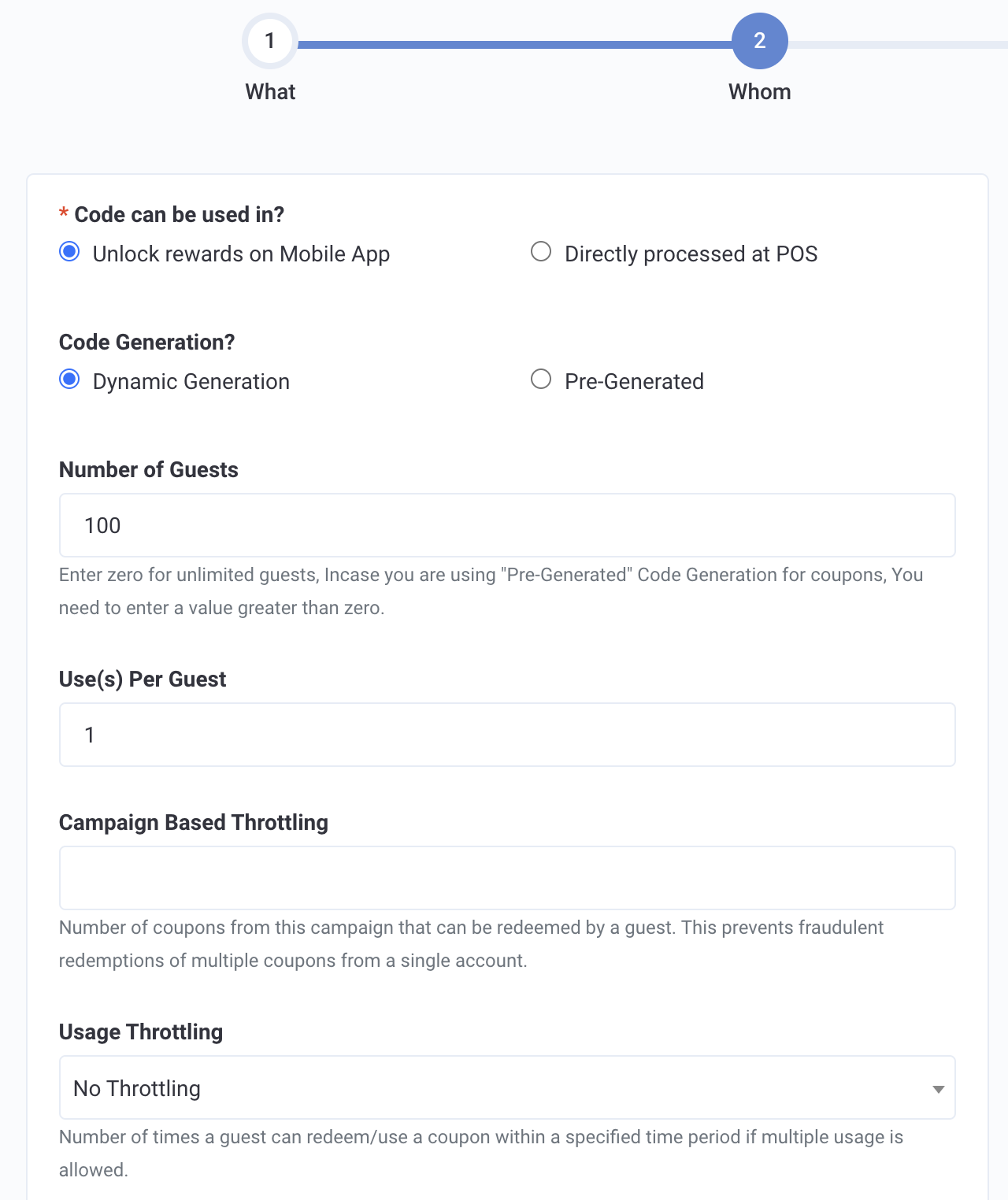
- The campaign must be activated and not saved as a draft for the Dynamic Generation Token and Dynamic Generation URL to appear in the campaign settings. See step 2 below for details about those fields.
For additional details about each setting when creating the campaign, please see this article on the Punchh Support Portal. You can view this article on the Punchh Support Portal if you have access to a Punchh production environment. If you already have access to a production environment for a business, please follow the instructions here in order to access the Punchh Support Portal.
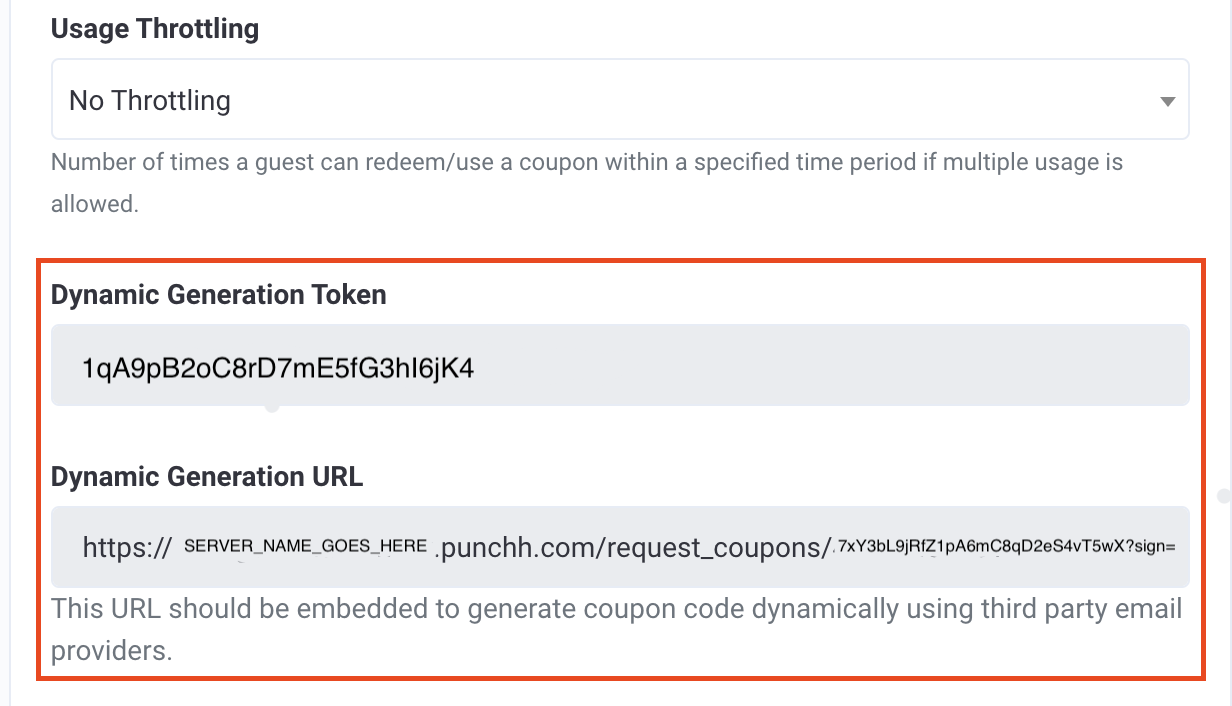
2. The Punchh coupon framework will generate the following parameters to enable dynamic coupon generation and will appear in the campaign settings after the campaign is activated. Edit the campaign you created in step 1 above and then click the Next button to advance to the next page of the campaign settings. Scroll down until you see the following fields:
- Dynamic Generation Token: This is a system-generated security token for generating a signature.
- Dynamic Generation URL: This URL will be embedded in the email as a link or an image, as required by the business.
Generate a Signature and Append It to the Dynamic Generation URL
The JWT.IO library is used to decode, verify, and generate JSON web tokens, which are an open, industry-standard RFC 7519 method for representing claims securely between two parties.
Step 1: Generate a signature
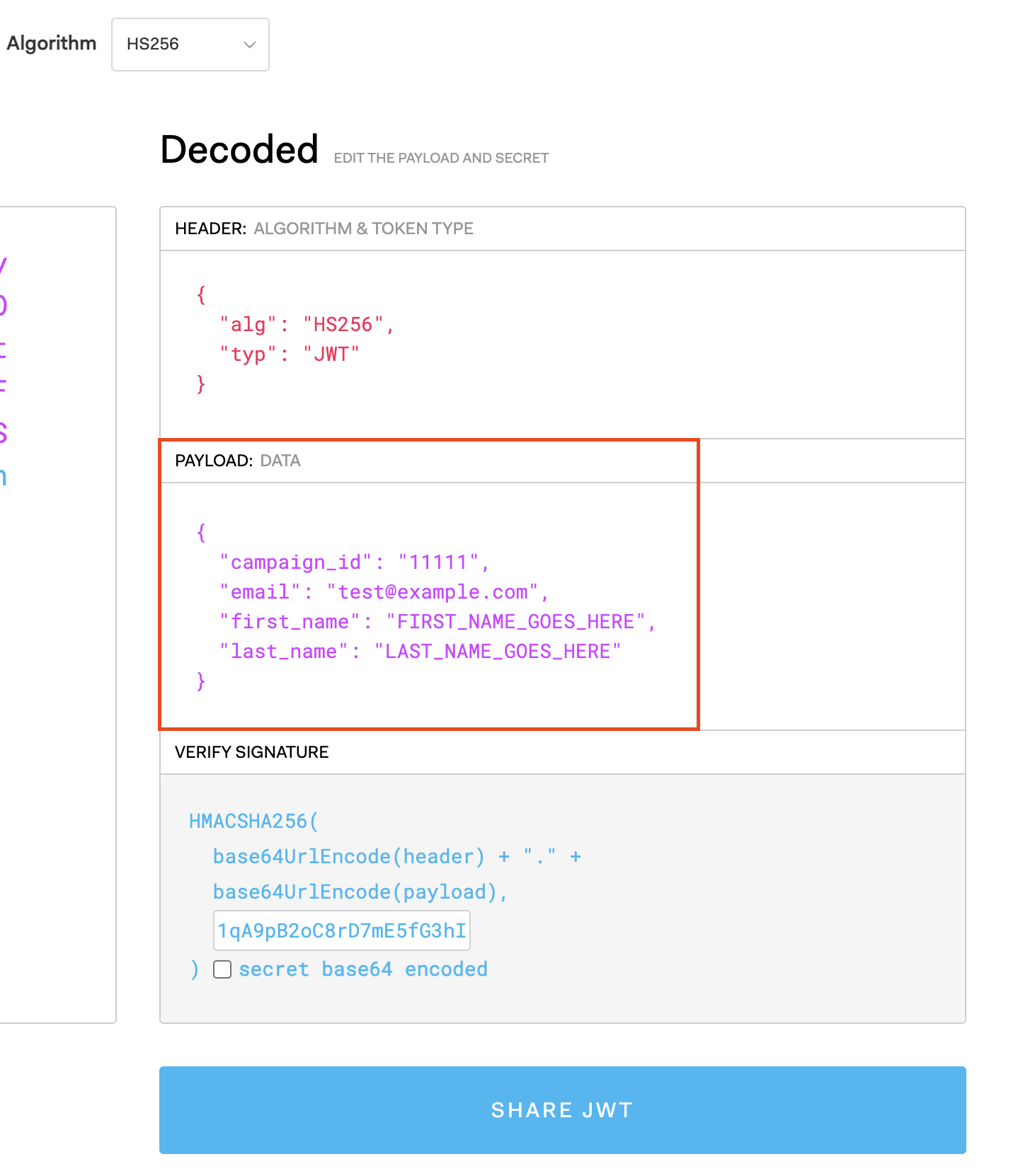
The parameters listed below should be used in combination to ensure the uniqueness of guests/coupons. These parameters are required to generate a valid signature.
-
campaign_id- The Punchh dynamic coupon campaign ID. This can be retrieved from the Dynamic Generation coupon campaign that you created in Create a Coupon Campaign in the Punchh Platform. Navigate to that campaign on the Punchh platform. The campaign ID will be in the URL path in your web browser followinguser_campaigns/.Example
Campaign URL path:https://SERVER_NAME_GOES_HERE.punchh.com/user_campaigns/11111?mode=new&type=coupon_campaigns#/
Campaign ID:11111 -
email- The guest's email address -
first_name- The guest's first name -
last_name- The guest's last name
1. Go to jwt.io.
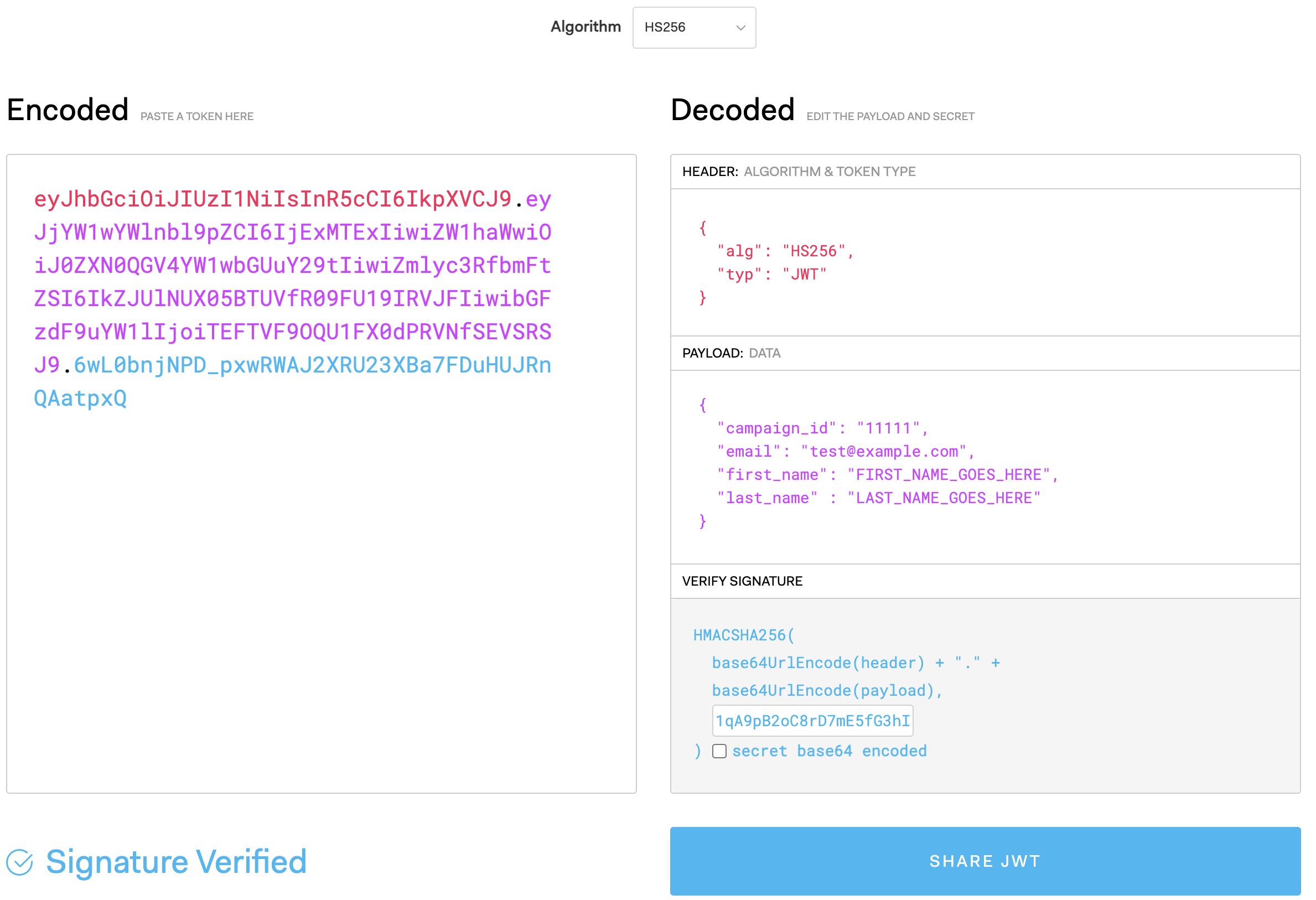
2. In the Decoded section on the right side of the page, enter the campaign_id, email, first_name and last_name parameters and their values into the PAYLOAD: DATA section as shown in the example below:
3. Copy the Dynamic Generation Token that you retrieved from the campaign settings during step 2 of Create a Coupon Campaign in the Punchh Platform.
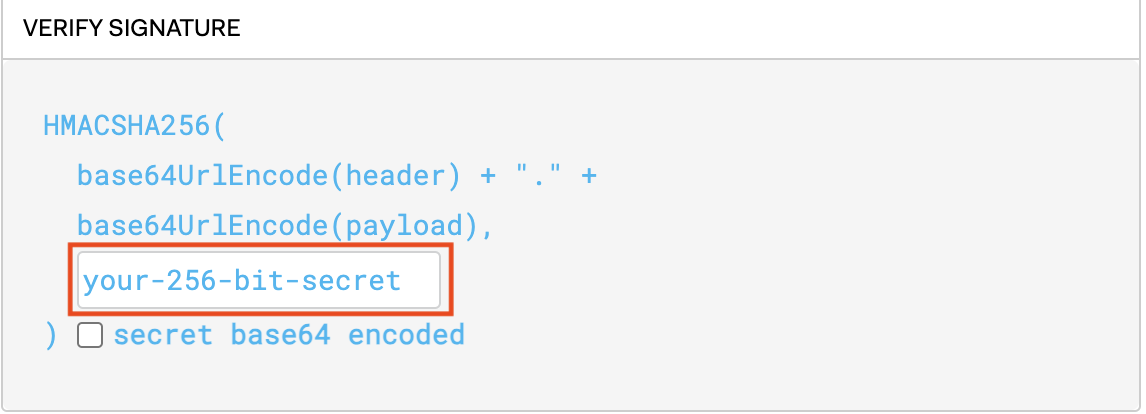
4. Paste the Dynamic Generation Token into the Verify Signature box in the field where it says your-256-bit-secret:
Once the preceding steps are complete, a signature using the above parameters will be in the Encoded section on the left side of the page. Here is a complete example of all the parameters needed along with the generated signature:
Step 2: Construct the complete URL needed to generate a dynamic coupon code
1. Copy the entire Dynamic Generation URL from the campaign settings indicated in step 2 of Create a Coupon Campaign in the Punchh Platform.
2. Paste the Dynamic Generation URL into the text editor of your choice.
Here is an example of what the URL will look like with the GENERATED_SIGNATURE placeholder:
https://SERVER_NAME_GOES_HERE.punchh.com/request_coupons/7xY3bL9jRfZ1pA6mC8qD2eS4vT5wX?sign=GENERATED_SIGNATURE
3. Copy the generated signature from the Encoded section in jwt.io. In the text editor, replace the GENERATED_SIGNATURE placeholder in the Dynamic Generation URL that you pasted in the previous step.
Here is an example of what the complete URL will look like after you append the generated signature to the Dynamic Generation URL:
https://SERVER_NAME_GOES_HERE.punchh.com/request_coupons/7xY3bL9jRfZ1pA6mC8qD2eS4vT5wX?sign=eyJhbGciOiJIUzI1NiIsInR5cCI6IkpXVCJ9.eyJjYW1wYWlnbl9pZCI6IjExMTExIiwiZW1haWwiOiJ0ZXN0QGV4YW1wbGUuY29tIiwiZmlyc3RfbmFtZSI6IkZJUlNUX05BTUVfR09FU19IRVJFIiwibGFzdF9uYW1lIjoiTEFTVF9OQU1FX0dPRVNfSEVSRSJ9.6wL0bnjNPD_pxwRWAJ2XRU23XBa7FDuHUJRnQAatpxQ
Step 3: Use the dynamically generated coupon code
The complete URL that you constructed in step 2 above can be used in the following ways:
Option A - As a link to a Punchh hosted web page
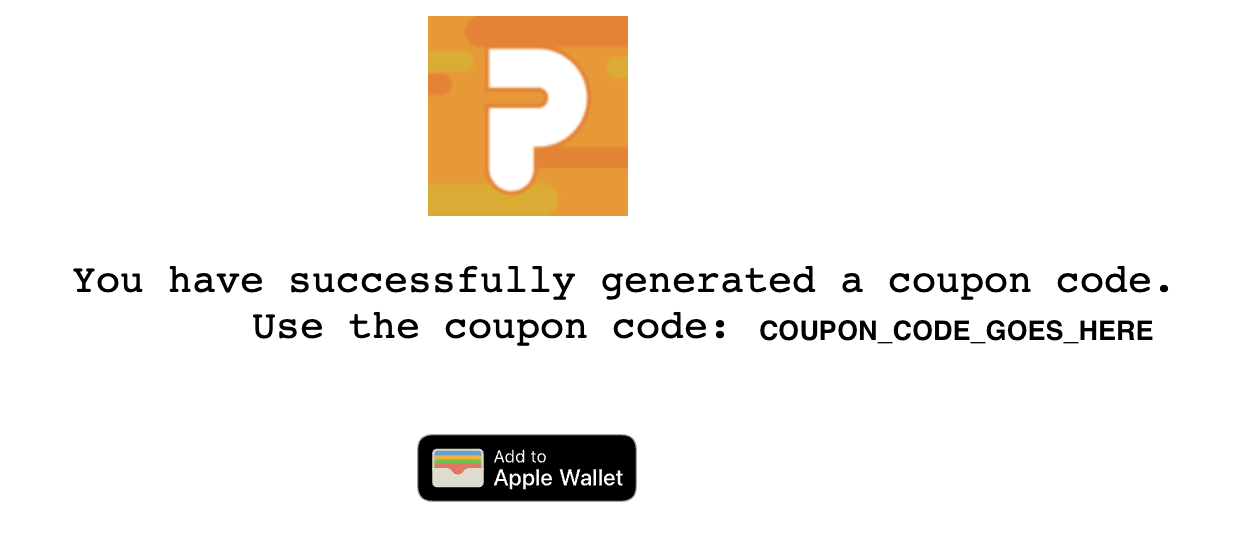
After clicking on the coupon URL created in step 2 above, the user will be redirected to a Punchh hosted web page, where the generated coupon will be displayed to the user as shown in the following image:
Option B - Using JSON to host your own web page
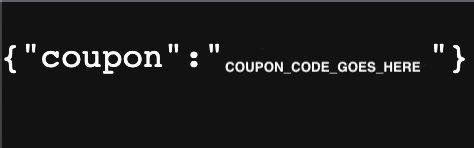
A JSON response can be constructed using the URL by adding .json before the sign query parameter:
https://SERVER_NAME_GOES_HERE.punchh.com/request_coupons/7xY3bL9jRfZ1pA6mC8qD2eS4vT5wX.json?sign=eyJhbGciOiJIUzI1NiIsInR5cCI6IkpXVCJ9.eyJjYW1wYWlnbl9pZCI6IjExMTExIiwiZW1haWwiOiJ0ZXN0QGV4YW1wbGUuY29tIiwiZmlyc3RfbmFtZSI6IkZJUlNUX05BTUVfR09FU19IRVJFIiwibGFzdF9uYW1lIjoiTEFTVF9OQU1FX0dPRVNfSEVSRSJ9.6wL0bnjNPD_pxwRWAJ2XRU23XBa7FDuHUJRnQAatpxQ
Option C - Link image inside email content
The coupon image can be added as a clickable image in an email using a URL like this:
https://SERVER_NAME_GOES_HERE.punchh.com/request_coupons/7xY3bL9jRfZ1pA6mC8qD2eS4vT5wX.png?sign=eyJhbGciOiJIUzI1NiIsInR5cCI6IkpXVCJ9.eyJjYW1wYWlnbl9pZCI6IjExMTExIiwiZW1haWwiOiJ0ZXN0QGV4YW1wbGUuY29tIiwiZmlyc3RfbmFtZSI6IkZJUlNUX05BTUVfR09FU19IRVJFIiwibGFzdF9uYW1lIjoiTEFTVF9OQU1FX0dPRVNfSEVSRSJ9.6wL0bnjNPD_pxwRWAJ2XRU23XBa7FDuHUJRnQAatpxQ

Associated Error Messages
| Error Code | Error Message | Description |
|---|---|---|
| coupon_code_expired | "This promo code has expired." | The code is used after its configured date of expiration. |
| coupon_code_success | "Congratulations, Promo Code Applied Successfully." | The code is used successfully. |
| coupon_code_error | "Please enter a valid promo code." | The code used is invalid. |
| coupon_code_type_error | "Incorrect coupon type. This coupon can only be redeemed at %{coupon_type}." | When a code that is supposed to be used at the POS is used in the mobile app, this error will occur. |
| usage_exceeded | "The usage for this coupon code's campaign is full. Please try next time." | The usage of the code exceeds the number of users who are allowed to use it. For example, if the platform configuration allows a code to be used by 3,000 users and the number of users exceeds 3,000, this error will occur. |
| usage_exceeded_by_guest | "This promo code has already been processed." | The usage of the code by a user exceeds the number of times a user can use it. For example, if the platform configuration allows a single code to be used three times by a user but it is used more than that, this error will occur. |
| already_used_by_other_guest | "This promo code has already been used by some other guest." | The code has already been used by another user. |