Scheduled Ordering
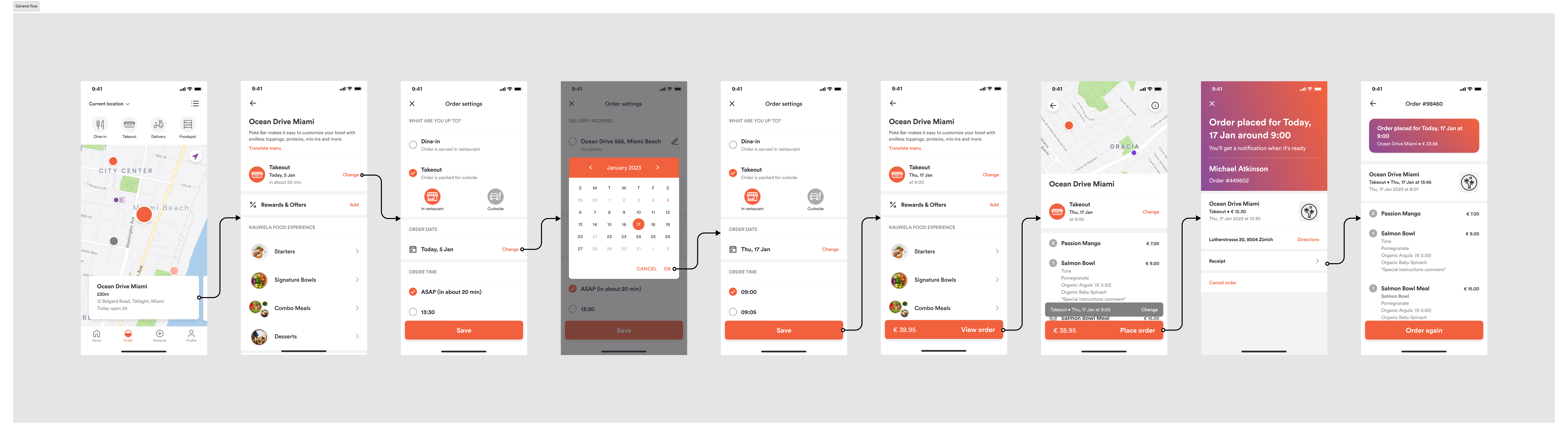
This guide shows you how to let a customer place an order for a future date and time rather than as soon as possible.
Before proceeding, you should have implemented:
How scheduling works
Scheduling is not a separate flow — it is the same cart flow with a time instead of "as soon as possible". Every order type that supports scheduling takes either an ASAP flag or an explicit timestamp on metadata.order_type:
- Pickup types (Takeout, Dine-in QS, Curbside, Drive-Thru, Catering Pickup) use
pickup_asaporpickup_at. - Delivery types (Delivery, Catering Delivery) use
delivery_asapordelivery_at.
Dine-in (FS) cannot be scheduled — the customer is already at the table.
Timestamps are formatted Y-m-d H:i:s and are in the venue's timezone, not the customer's and not UTC. The venue resource carries its timezone and offset, so convert before you send.
Step 1 — Which dates can the customer choose?
Stores do not accept every order type on every day, and catering in particular often needs notice. Ask for the dates the store will take this order type before you show a calendar:
POST /api/venues/{venue_id}/order-types/{order_type_id}/working-dates
Use the result to drive the date picker, disabling anything not returned. This matters more than it sounds — letting a customer pick Sunday for a store that is closed on Sundays produces a failure several screens later, at checkout.
Request
{
  "method": "post",
  "url": "https://api-public-demo.menu.app/api/venues/{venue_id}/order-types/6/working-dates",
  "headers": {
    "X-Request-ID": "69da3547-204b-4093-a225-54e084c24215",
    "Application": "f3a90488ffee32c3acb6fcd0ca417cf6",
    "Api-Version": "4.78.0",
    "Content-Type": "application/json"
  }
}
Step 2 — Which times on that date?
Once the customer has picked a date, ask for the slots available on it.
Use Orders Filtered Pickup Times, passing the chosen date as in_advance_date. It applies the store's preparation time, takes the cart into account when you pass cart_id, and flags slots that are already fully booked so you can grey them out. It takes a nested order_type.id and a singular_point_id rather than a venue_id — see Choosing a pickup or delivery time.
Both take a singular_point_id rather than a venue_id. See Choosing a pickup or delivery time for how to read it from the venue's areas.
For delivery order types use the same call, with the delivery order type and the customer's coordinates on order_type.delivery_info, so the address is accounted for as well as the store.
Present only what comes back. Do not offer a free-text time field.
Step 3 — Put the time on the cart
Set the timestamp on metadata.order_type and leave the ASAP flag out, or set it to false.
Request
{
  "method": "put",
  "url": "https://api-public-demo.menu.app/api/cart/{cart_id}",
  "headers": {
    "X-Request-ID": "69da3547-204b-4093-a225-54e084c24215",
    "Application": "f3a90488ffee32c3acb6fcd0ca417cf6",
    "Api-Version": "4.78.0",
    "Content-Type": "application/json"
  },
  "body": {
    "metadata": {
      "venue_id": "a9d6d0c8-1689-4114-b1ec-6da9c33f0384",
      "order_type": {
        "id": 6,
        "pickup_asap": false,
        "pickup_at": "2026-09-22 18:00:00"
      }
    },
    "cart": {
      "products": [
        {
          "price_id": "9a4e25be-9c32-4b69-81b7-19a4f3595406",
          "quantity": 1,
          "comment": "",
          "product_groups": []
        }
      ],
      "discounts": [],
      "tip": {
        "amount": 0,
        "type": 1
      }
    }
  }
}
Prices and availability can differ by date
A scheduled order is priced and validated for the time it is scheduled for, not for now. An item may be unavailable today but available next Tuesday, and prices can differ between serving times. The cart handles this for you — just make sure you set the time before you show the customer their basket total, and re-read the cart after changing the time.
Check out, pay and place the order
Continue as in Server Side Cart.
Be aware that time passes between a customer choosing a slot and checking out. Re-fetch the available times if the customer has been idle, and handle the checkout rejection below.
What can go wrong
The chosen time is no longer available — HTTP 400, with code 2001 for pickup or 2002 for delivery, and the rejected timestamp in info_message.title. Re-fetch the times for that date, ask the customer to choose again, update the cart and retry.
The date is not a working date. If you skipped step 1, or the store's hours changed, the time will be rejected at checkout. Re-run the working-dates call and rebuild the picker.
After the order is placed
Scheduled orders are not sent to the store immediately. They sit in SendDelayed until it is time for the kitchen to start preparing, then move through the normal statuses. Do not treat SendDelayed as an error — see Order Statuses — and follow the order with order status webhooks.